How to Set Up Columns, Layouts, and Timescales in Primavera P6

How to Set Up Columns, Layouts, and Timescales in Primavera P6

Primavera P6 is a powerful scheduling tool, but its true potential lies in how you set up your workspace. The way your columns, layouts, and timescales are configured can make a big difference in how clearly you view, analyze, and manage your project data.

Whether you’re tracking baseline variance, updating progress, or reviewing resource assignments, having the right layout saves time and reduces confusion. The best part? Primavera P6 allows you to fully customize these views to match the needs of your team or reporting style.

In this guide, you’ll learn how to set up columns to display key project fields, create and manage custom layouts, and adjust the timescale for better timeline visibility. Each step is designed to help you personalize your workspace and make Primavera P6 more intuitive to use, especially during daily schedule reviews and reporting cycles.

Watch Video Instead

Watch our detailed video tutorial on How to Set Up Columns, Layouts, and Timescales in Primavera P6

Step 1: Opening Layouts in Primavera P6

Primavera P6 comes with a range of built-in layout options — and if you’re working in a shared environment, you may also see layouts created by other users or administrators. These layouts help standardize how data is viewed across projects and teams.

To explore and open available layouts, go to the top menu and select:

Layout > Layout > Open

Opening Layouts in Primavera P6

Keep in mind: the layouts shown are context-specific. If you open the Layout menu from the Activities screen, you’ll only see layouts related to Activities. The same goes for Projects, WBS, and other screens — each has its own layout type.

To apply a layout, simply select it from the list and click Open. The layout will load, applying its saved settings to your current view.

The Open Layout window lets you browse and select layouts from three categories:

Step 2: Creating a Custom Layout in Primavera P6

While Primavera P6 provides several default layouts, creating your own can significantly improve how you view and manage project data. You can tailor layouts to match your workflow — whether you’re tracking cost, updating progress, or focusing on a specific project phase.

For this guide, we’ll walk through how to customize a layout in the Activities view, but the same steps apply to WBS or Project layouts too.

To get started, make adjustments to the current interface. You’ll find layout tools under both the View and Layout menus. These menus offer various options to change columns, groupings, colors, filters, bar styles, and more. While we won’t explore every tool here, we’ll cover two key features: Grouping and Sorting.

  1. Grouping Activities by WBS

Grouping helps you organize activities into clear bands — often color-coded — making large schedules easier to scan. You can group by fields like Activity Type or Code, but the most common option is WBS (Work Breakdown Structure), which organizes tasks by project phase or discipline.

To group activities:

  1. Go to Layout > Group and Sort
Go to Layout > Group and Sort in Primavera P6

2. In the Group and Sort window, use the Group By dropdown to select how you want to group. For this example, choose WBS.

3. To customize how each group appears, click in the Font & Color cell beside each WBS level. You can modify:

  • Font type and size
  • Bold or italic styling
  • Text color
  • Background color for better visibility
To customize how each group appears, click in the Font & Color cell beside each WBS level. You can modify:

This visual separation makes it easier to distinguish between project phases or work packages at a glance.

2. Sorting Activities Within Groups

Within the same Group and Sort window, you can define how activities are sorted — either within groups or across the entire table.

  1. Click the Sort button
  2. Under Field Name, choose the field you want to sort by (e.g., Activity ID, Start Date, Duration)
  3. Set Sort Order to either Ascending or Descending
  4. Click OK to apply the sorting rules
Click OK to apply the sorting rules

Alternatively, you can quickly sort activities by clicking on any column header directly in the table — but keep in mind this applies a temporary sort and doesn’t change the saved layout settings.

Step 3: Adding and Removing Columns in Primavera P6

Customizing which columns appear in your layout is key to seeing the information that matters most. Depending on your workflow — whether you’re resource loading, tracking progress, or reviewing costs — you’ll want different fields displayed.

For example:

  • If you’re focused on cost and effort, you’ll need columns like Budgeted Cost, Planned Units, or Resource Name
  • If you’re tracking schedule updates, you’ll want fields like Remaining Duration, Percent Complete, or Actual Start

To customize your columns, follow these steps:

  1. Go to the top menu and select:
    Layout > Columns
Go to the top menu and select:
 Layout > Columns

2. In the Columns window, you’ll see two panels:

  • Available Options: A list of all column categories and fields (e.g., Dates, Costs, Resources, Activity Codes)
  • Selected Options: Columns that are currently visible in your table

3. To add a column:

  • Select a field from Available Options
  • Click the right arrow (→) to move it to the Selected list

4. To remove a column:

  • Select it from Selected Options
  • Click the left arrow (←) to remove it from the view

5. To reorder how columns appear in your table:

  • Use the up/down arrows next to the Selected list to move fields up or down
Use the up/down arrows next to the Selected list to move fields up or down

When you’re satisfied with the column layout, click OK. The updated columns will be immediately reflected in your Activities view.

Having the right columns in place makes it easier to stay focused, whether you’re updating progress, preparing reports, or analyzing delays.

Step 4: Adjusting the Timescale in Primavera P6

The Timescale setting controls how time is displayed in your Gantt chart and other views like resource profiles or spreadsheets. Adjusting this lets you zoom in for short-term detail or zoom out for a long-range overview — depending on your project’s complexity and phase.

To change the timescale in the Gantt chart or other display areas:

  1. Make sure the Gantt Chart, profile, or spreadsheet is visible in your layout (either top or bottom pane).
  2. Click the Layout Options bar at the top of the view and choose Timescale from the dropdown.
Click the Layout Options bar at the top of the view and choose Timescale from the dropdown.

3. In the Timescale dialog box:

  • Choose whether to display the timescale as Two Lines or Three Lines — useful for layering units like months, weeks, and days.
Choose whether to display the timescale as Two Lines or Three Lines — useful for layering units like months, weeks, and days.

4. In the Timescale Start field, click the calendar icon to set where the timeline should begin. You can choose from standard options or set a custom start date to better align with your project’s timeline.

In the Timescale Start field, click the calendar icon to set where the timeline should begin. You can choose from standard options or set a custom start date to better align with your project's timeline.

5. Click Font & Color to adjust how the timescale appears visually. Here, you can:

  • Choose the font style and size
  • Set color coding for clarity
  • Click Default Font to reset everything back to Primavera’s standard appearance
Choose the font style and size


Set color coding for clarity


Click Default Font to reset everything back to Primavera’s standard appearance

Configuring the Date Format

Primavera gives you two display options for the timescale:

  • Show Primary Dates – Displays familiar time units like Day, Week, or Month
  • Show Ordinal Dates – Displays sequential numbers based on a defined start date (used in specialized scheduling scenarios)

If you’re using Primary Dates:

  • Under Type, choose the format (e.g., Week/Month, Month/Quarter)
  • In the Date Interval field, pick how granular you want the view
  • If you choose Day/Shift, you can also select a Shift Calendar
  • If you’re using Financial Periods, select the appropriate Financial Calendar
Under Type, choose the format (e.g., Week/Month, Month/Quarter)


In the Date Interval field, pick how granular you want the view


If you choose Day/Shift, you can also select a Shift Calendar


If you're using Financial Periods, select the appropriate Financial Calendar

If you’re using Ordinal Dates:

  • Set the Ordinal Start date
  • Choose the Ordinal Interval (e.g., every 5 days) to control how dates appear

Once all settings are selected:

  • Click Apply to preview the changes
  • Click OK to confirm and exit the dialog
Click Apply to preview the changes


Click OK to confirm and exit the dialog

Adjusting the timescale ensures your schedule is easy to read, whether you’re reporting on monthly milestones or managing daily crew activities. It’s a small change that can make a big difference in project visibility.

Conclusion

Setting up your workspace in Primavera P6 isn’t just about aesthetics — it’s about working smarter. By customizing your columns, creating reusable layouts, and adjusting the timescale, you make the data more readable, the workflow more efficient, and the schedule easier to manage.

Whether you’re preparing reports, reviewing progress, or planning resources, having the right layout can save you hours of frustration. These small adjustments give you more control over how project information is displayed and shared — especially when working across teams or managing complex project structures.

Now that you know how to fine-tune these elements, take a few minutes to build layouts tailored to your specific workflows. Save them, share them, and use them to navigate your schedules with clarity.

Want to Go Deeper?

Watch our in-depth Primavera P6 webinar to learn about this project management tool.

How to Add an Activity in Primavera P6

How to Add an Activity in Primavera P6

In Primavera P6, activities are the building blocks of any project schedule. They represent the individual tasks that need to be planned, executed, and tracked to ensure project success. Whether you’re managing a construction project, an engineering deliverable, or a shutdown plan, adding activities accurately is essential for creating a realistic and reliable schedule.

If you’re just getting started with Primavera P6, learning how to add activities is one of the first and most important steps. It’s not just about inserting a task — it’s about placing it in the right WBS level, assigning the correct duration, and selecting the right activity type to reflect how the work will be performed.

In this guide, we’ll walk you through the step-by-step process to add an activity in Primavera P6, explain the different activity types, and share tips to help you structure your schedule more effectively.

Watch Video Instead 

Watch our detailed video tutorial on How to Add Activities in Primavera P6

When building out your schedule in Primavera P6, it’s not just about entering activities — it’s about entering them with purpose. Every activity you add contributes to the logic of your project, drives durations, and directly impacts how progress and delays are measured. That’s why it’s important to consider how each task fits within your WBS, how it connects to predecessors and successors, and whether it needs resources or constraints. Investing a few extra minutes at this stage can save hours later during schedule updates, reporting, and stakeholder reviews — ensuring your project stays aligned with both plan and reality.

Step-by-Step: How to Add an Activity in Primavera P6

When you open the Activities window in Primavera P6, you’ll see a familiar three-part layout:

  • On the far left, the Activity Table, where WBS (Work Breakdown Structure) elements and activities are listed
  • In the center, the Gantt chart view, which visualizes task durations and dependencies
  • At the bottom, the Activity Details pane, where you can configure information like resources, predecessors, constraints, and more

In the Activity Table, WBS elements appear as color-coded rows, each color representing a different hierarchical level. This makes it easier to identify structure and organize your schedule.

In the Activity Table, WBS elements appear as color-coded rows, each color representing a different hierarchical level. This makes it easier to identify structure and organize your schedule.

To start adding tasks, you’ll first select the WBS element under which the activity will be created. In this example, we’re placing our first activity directly below the top-level WBS called “New Home Construction.”

Option 1: Add an Activity Using the Wizard

  1. Select the WBS element (e.g., “New Home Construction”)
  2. Click the Activities button to the right of the Gantt chart
Option 1: Add an Activity Using the Wizard in Primavera P6

This launches the New Activity Wizard, a step-by-step dialog box that guides you through the process of creating your activity.

Step 1: Activity ID and Name

Primavera will auto-generate an Activity ID. You can leave this as is or edit it to match your naming system.

 In the Activity Name field, type a descriptive title — for example, “Notice to Proceed.”

Step 1: Activity ID and Name in Primavera P6

Click Next.

Step 2: Confirm WBS Assignment

The WBS element should already be selected based on your previous step. If needed, you can change it by clicking the ellipsis (…) and selecting another WBS node.

Step 2: Confirm WBS Assignment in Primavera P6

Click Next.

Step 3: Choose the Activity Type

By default, Primavera sets the Activity Type to “Task Dependent.”
For this example, we’re creating a Start Milestone, so select that from the dropdown menu.

Step 3: Choose the Activity Type in P6

Click Next.

Step 4: Skip Relationships for Now

The wizard will prompt you to define predecessors or successors. Since this is the first activity, no relationships are needed yet.

Step 4: Skip Relationships for Now in P6

Click Next.

Step 5: Additional Details (Optional)

Here, you can attach documents, assign activity codes, or enter expenses — but for a Start Milestone, this isn’t necessary.

Step 5: Additional Details (Optional)

Click Next.

Step 6: Finish the Wizard

You’ll see a confirmation screen. Click Finish to add the activity to your schedule.

The new activity will appear both in the Activity Table and on the Gantt chart as a milestone marker.

Step 6: Finish the Wizard in P6

Ready to master Primavera P6?

Join our training program and get hands-on with real-world scheduling, project setup, and advanced controls.

Option 2: Add Activities Directly in the Activity Table

If you prefer a quicker, manual method, you can add activities directly within the Activity Table, bypassing the wizard.

Let’s continue with the same example. In the Activities view, we’ll insert a new task right below the one we just created — “Notice to Proceed.”

  1. Right-click on the activity row (Notice to Proceed)
  2. In the pop-up menu, scroll down and click Add
Option 2: Add Activities Directly in the Activity Table in Oracle Primavera P6

A new activity row will appear directly beneath it. Primavera P6 will automatically generate an Activity ID. You can now name the activity — for example, enter “Project Start.”

A new activity row will appear directly beneath it. Primavera P6 will automatically generate an Activity ID. You can now name the activity — for example, enter “Project Start.”

Since this new task is also a Start Milestone, navigate to the General tab in the bottom Details pane.

Change the Activity Type from the default Task Dependent to Start Milestone using the dropdown menu.

Change the Activity Type from the default Task Dependent to Start Milestone using the dropdown menu.

This method is ideal for users comfortable with the layout and looking to add multiple activities efficiently without stepping through the wizard each time.

Conclusion

Mastering how to add activities in Primavera P6 is an essential skill for any planner or scheduler working with project controls. Whether you’re building a construction timeline, planning a shutdown, or managing an engineering deliverable, your activities form the core of the project’s logic and progress tracking.

In this guide, we covered two practical methods for adding activities — one using the guided Activity Wizard and the other via direct input in the Activity Table. We also explored how to properly assign WBS elements and activity types to ensure your schedule stays clean, accurate, and easy to manage.

By applying these steps consistently, you lay the groundwork for reliable dependencies, resource assignments, and performance tracking — all of which are critical to successful project execution in Primavera P6.

Want to Go Deeper?

Watch our in-depth Primavera P6 webinar to learn about this project management tool.

Primavera P6 Latest Version Review: 24.12 Features & Benefits

Primavera P6 Latest Version Review: 24.12 Features & Benefits

Primavera P6 has long been the go-to project management tool for large-scale planning and scheduling — especially in industries like construction, EPC, oil & gas, and infrastructure. With each version release, Oracle continues to enhance the platform’s performance, usability, and stability to meet the demands of today’s complex project environments.

The latest release, Primavera P6 Version 24.12, delivers a series of improvements aimed at streamlining the user experience and optimizing performance — particularly for teams managing high-volume project data. From faster screen responsiveness to smarter search functionality, this version addresses several long-standing pain points while making project navigation and bulk updates easier.

In this Primavera P6 latest version review, we’ll explore the key features and benefits of the 24.12 release — and what they mean for planners, schedulers, and project teams aiming to work smarter and faster.

Why Primavera Version Updates Matter

If you’re someone who uses Primavera P6 regularly — whether for planning construction timelines, managing shutdowns, or reporting progress — keeping up with the latest version can make a big difference.

Each update from Oracle doesn’t just fix bugs — it usually brings improvements that make your everyday tasks faster, smoother, and more reliable. For example, performance boosts in the Activities view or better WBS navigation might sound minor, but they can save serious time when working with large, complex schedules.

Updating also means:

  • Fewer system glitches during scheduling or updates
  • Better compatibility with newer databases or operating systems
  • Access to Oracle’s latest support and documentation
  • Staying aligned with what your clients or teams might already be using

While some users wait to upgrade until it’s absolutely necessary, those who update early often benefit from better usability and fewer workarounds.

So, what exactly does the latest version of Primavera P6 bring to the table?

1. Unlink Activities Faster with the New Edit Menu Option

Making changes to task relationships in Primavera P6 just got easier. In Version 24.12, users can now remove links between activities using a dedicated “Unlink Activities” command — no more manually deleting each relationship.

This new feature simplifies schedule adjustments by allowing you to select multiple activities and remove their links to predecessors or successors in a single action.

Here’s how it works:

  • Highlight the activities you want to modify in the Gantt chart
  • Go to Edit > Unlink Activities.
  • Confirm when prompted, and the relationships will be removed
Unlink Activities Faster with the New Edit Menu Option

The key benefit? Only the selected dependencies are cleared, while all other connections in the schedule stay intact.

This update is especially useful during resequencing or when reworking portions of the schedule, giving you more flexibility and saving you clicks.

2. Control Responsible Manager Imports in XER Files

In previous versions of Primavera P6, importing XER files often led to unnecessary clutter by automatically adding new Responsible Managers to the Organization Breakdown Structure (OBS) — even if they weren’t needed.

What’s New:

  • A new option in the Update Project Options screen during XER import
  • Under Global Data, users can now select “Do Not Import Responsible Manager”
  • Provides greater control over imported content in shared environments

Why It Matters:

This prevents accidental data pollution and keeps your OBS structure clean and consistent — especially in enterprise environments where multiple schedules and users interact with shared global data. It’s a simple but highly effective improvement for maintaining organizational data integrity.

Control Responsible Manager Imports in XER Files

3. Better Visibility in Global Change Reports

The Global Change feature is widely used to apply bulk updates across activities — but until now, users didn’t have a clear view of where those changes were being applied, increasing the risk of unintended edits.

What’s New:

  • Global Change reports now display Project ID and WBS Code
  • Makes it easier to identify the exact location of changes
  • Helps ensure edits are applied to the correct projects or WBS elements

Why It Matters:

With clearer context in change reports, users can verify updates before committing them, reducing mistakes and providing more confidence when working across multiple open projects. It’s a particularly helpful upgrade for teams managing high-volume schedules with overlapping WBS structures.

Better Visibility in Global Change Reports in Primavera P6
Better Visibility in Global Change Reports

4. Preview Before Updating a Baseline

Updating a baseline can significantly affect your schedule — and until now, Primavera P6 didn’t offer a way to review what would change before applying the update.

What’s New:

  • New preview functionality before committing a baseline update
  • Option to adjust update settings and re-preview before finalizing
  • Adds a validation step to ensure accuracy and control

Why It Matters:

This feature gives planners better oversight during a critical step in schedule management. By previewing updates, users can avoid unintended changes, reduce errors, and confidently maintain baseline integrity — especially important in environments with contractual or audit-sensitive schedules

5. Export Full Hierarchy Code Value Path to CPP Format

While this feature may not affect all users, it’s a significant improvement for those working on Department of Defense (DoD) or other government-regulated projects that require strict data formatting and traceability.

What’s New:

  • Full support for exporting the entire hierarchy code value path
  • Available when exporting to CPP (Contract Performance Report) format
  • Designed to meet specific DoD data structure requirements

Why It Matters:

This enhancement ensures that exported project data aligns with DoD expectations for hierarchical traceability, making compliance easier for government contractors. It saves time on manual restructuring and reduces the risk of data misalignment — a welcome improvement for defense-focused project managers.

6. Milestone Activities Now Support All Relationship Types

In recent versions of Primavera P6, milestone activities were limited to only certain types of relationships — a change that created compatibility issues, especially when working with legacy schedules.

What’s New:

  • Oracle has rolled back the restriction on milestone relationships
  • Milestones can once again use any relationship type (Start-to-Start, Finish-to-Finish, etc.)
  • This behavior now matches how older versions of P6 functioned

Why It Matters:

This update improves backward compatibility and removes the friction users faced when importing or editing schedules built in earlier versions. It’s especially useful for organizations maintaining long-running projects or sharing files across teams using different P6 versions.

Other Notable Improvements

In addition to the major updates, Primavera P6 Version 24.12 includes several smaller enhancements that improve performance, security, and usability — particularly for enterprise and cloud-based users.

What’s New:

  • Performance Enhancements: Faster project check-in and check-out when working with SQLite databases
  • Improved Code Signing: Enhanced application security through stronger code validation
  • EPPM Enhancements (Cloud):
    • Better user administration tools
    • Clearer summary bar labels
    • Easier access to audit trail data

Why It Matters:

These updates may seem minor individually, but together they contribute to a smoother, more secure experience — especially for teams using Primavera P6 in cloud environments or across large enterprise infrastructures. They reflect Oracle’s continued investment in both backend performance and day-to-day user convenience.

Should You Upgrade Now?

Whether or not you should upgrade to Primavera P6 Version 24.12 depends on your current setup, project workload, and the challenges you may be facing with older versions.

You should consider upgrading if:

  • You’re working with large datasets and need better performance in the Activities or WBS views
  • Your team uses Global Search and Replace frequently and would benefit from the added flexibility
  • You’ve experienced system slowdowns, crashes, or lag in schedule calculations
  • You want to stay aligned with Oracle’s latest supported version and best practices

You might wait if:

  • Your organization uses highly customized integrations or third-party tools that haven’t been tested on 24.12
  • You’re in the middle of a high-risk, live project and prefer stability over change
  • You rely on specific layout formats or reports that may need adjusting post-upgrade

Overall, Primavera P6 Version 24.12 offers enough performance and usability improvements to justify an upgrade for most users, especially for teams managing complex schedules with high data volumes.

Join Our Free Primavera P6 Training Webinar

Want to see these new features in action?

Register for our upcoming live webinar where we walk through Primavera P6 Version 24.12, highlight real-time examples, and answer your questions on how to get the most out of the update.

📍 Register now to reserve your spot!

How to calculate Planned % and Actual % using Weight

How to calculate Planned % and Actual % using Weight

In Primavera P6, understanding Schedule % Complete (also known as Planned %) is essential for tracking whether your project is progressing as intended. This metric compares the current status of your project against the baseline to show how much work should have been completed by a given point in time.

What many users overlook is that Schedule % Complete is calculated using baseline dates and the current Data Date — and when those two dates match (typically at the project start), Schedule % Complete will naturally show zero. As your project advances, this value increases based on planned progress.

But here’s the catch: default calculations don’t account for the varying importance or weight of different activities. To get a more realistic view of progress, especially in complex or milestone-driven projects, calculating Planned % and Actual % using custom weights is a smarter approach.

In this blog, you’ll learn:

  • The difference between Schedule % Complete and Physical % Complete
  • How to assign weights to activities
  • And how to calculate both Planned % and Actual % using those weights — for more accurate and insightful progress tracking

How Schedule % Complete is Calculated in Primavera P6

Primavera P6 calculates Schedule % Complete using time-based progress by default. The formula is:

Create image of this formula:

Schedule % Complete = (Data Date – Baseline Start) / (Baseline Finish – Baseline Start)

This measures how much of the project’s baseline duration has elapsed up to the current data date — giving you a time-driven view of planned progress.

However, when your schedule is cost-loaded, Primavera takes a more value-based approach. In such cases, Schedule % Complete is based on the earned value principle and uses this formula:

Create image of this formula:

Schedule % Complete = Planned Value (PV) / Budget at Completion (BAC)

Where:

  • Planned Value (PV) is the portion of the baseline cost expected to be earned up to the data date
  • BAC (Budget at Completion) is the total baseline cost of the project

This approach gives a more realistic picture of planned progress by factoring in financial weight rather than just time.

Can You Measure Planned % Using Custom Weights?

Primavera P6 doesn’t natively calculate Planned % Complete using custom activity weights (such as scope complexity, effort, or priority). Its built-in methods rely on time, duration, or cost.

If you want to track Planned % using a custom weight-based model — for example, assigning each activity a numeric weight based on its impact — you’ll need to combine Primavera with Excel. Export your schedule data, apply weight-based formulas externally, and optionally bring the results back into P6 using user-defined fields.

Assigning Weights and Calculating Planned & Actual % Using Primavera P6 and Excel

To accurately calculate Planned % and Actual % using custom weights in Primavera P6, you’ll need to use a mix of features inside P6 and spreadsheet processing in Excel. Below is a detailed walkthrough to help you set this up.

In Primavera P6: Assigning Weights to Activities

Step 1: Open Resource Assignments

  • Open the project you want to work with
  • Go to Project > Resource Assignments
  • Or click the Resource Assignments icon on the left-hand toolbar
Open Resource Assignments in Primavera P6
resources assignments

Step 2: Filter by Resource Type

  • In the Resource Assignments window, use Filter By to display a specific resource type (e.g., nonlabor)
  • This helps isolate the resource used for assigning weights
Filter by Resource Type in Primavera P6

Step 3: Create a Nonlabor Weight Resource

  • Navigate to Enterprise > Resources
  • Add a new resource and set its Type to Nonlabor
  • This resource will serve as the “weight” applied to activities
 Create a Nonlabor Weight Resource

Step 4: Assign Weight Resource to Activities

  • Assign this nonlabor resource to each activity
Assign Weight Resource to Activities
  • In the Budgeted Units field, enter a numeric value to represent each activity’s weight
    (This value reflects how much each activity contributes to overall project progress)
In the Budgeted Units field, enter a numeric value to represent each activity's weight

Step 5: Customize the Resource Assignment View

  • Reopen Resource Assignments
  • Right-click on column headers > choose Columns > Customize
  • Add Budgeted Units to the visible columns
  • This displays the assigned weights for each activity
Customize the Resource Assignment View

Step 6: Adjust the Spreadsheet Fields in the Chart Area

  • In the bottom bar chart/spreadsheet area, right-click > select Spreadsheet Fields > Budgeted Units
  • This ensures the bar chart reflects the weights you’ve assigned
Adjust the Spreadsheet Fields in the Chart Area in Primavera P6

Step 7: Adjust the Time Interval

  • Right-click on the time axis and select Timescale
  • Change the time period to Month/Week to view data on a weekly basis

Step 8: Copy the Time-Distributed Data

  • Select and copy the resource assignment data (including budgeted units spread over time)
  • Paste this data into Excel for further calculation
Copy the Time-Distributed Data in Primavera P6
Copy the Time-Distributed Data

In Excel: Calculate Planned % Using Weights

Step 1: Paste Data into Excel

  • Paste the time-distributed budgeted units data (copied from Primavera) into a new worksheet in Excel
  • This data should include weekly (or monthly) budgeted units for each activity
In the Budgeted Units field, enter a numeric value to represent each activity's weight (This value reflects how much each activity contributes to overall project progress)

Step 2: Add Weekly Summary Rows

  • Create two new rows below your data:
    • Weekly Planned Weight — the total of all budgeted units for each week (sum of all rows for that week)
    • Weekly Planned % — calculated by dividing the weekly planned weight by the total project weight
Create two new rows below your data:

Important: In this setup, Row 2 (Weekly Planned Weight) represents the sum of all the activity-level weights (budgeted units) for each week. For example, if you’re looking at cell G2, it should equal the total of all budgeted units in column G for that specific week.

Then calculate the Weekly Planned % using the formula:

Weekly Planned % = Weekly Planned Weight / Total Budgeted Units

This gives you the percentage of planned progress for each time period, based on weight — not just duration or activity count.

Weekly Planned % = Weekly Planned Weight / Total Budgeted Units
Weekly Planned % = Weekly Planned Weight / Total Budgeted Units in P6

Step 3: Calculate Cumulative Values

  • Add two more rows:
    • Cumulative Planned Weight — running total of weekly weights
    • Cumulative Planned % — running total of weekly planned percentages

This provides a timeline of how much work should be completed at each point in the project, based on the weight distribution.

This provides a timeline of how much work should be completed at each point in the project, based on the weight distribution.

In Primavera P6: Track Actual Progress Using Actual Units

Step 1: Replace Budgeted Units with Actual Units

  • Go back to Resource Assignments in Primavera
  • This time, right-click and change the spreadsheet field from Budgeted Units to Actual Units
Replace Budgeted Units with Actual Units in Primavera P6

Step 2: Export the Actual Units to Excel

  • Copy the time-distributed actual units data from Primavera
  • Paste it into a new worksheet or a new tab in the existing Excel file
  • Create two tabs if needed — one showing actual units only and another combining both budgeted and actual units for comparison
Export the Actual Units to Excel in PRimavera P6

Step 3: Calculate Weekly Actual Units

  • To get weekly actuals, subtract the cumulative actual units from the previous week from the current week

Formula Example:
Weekly Actual Units = Actual Units (Week X) – Actual Units (Week X-1)

Formula Example:
 Weekly Actual Units = Actual Units (Week X) – Actual Units (Week X-1)

Step 4: Calculate Weekly and Cumulative Actual %

Add rows for:

  • Weekly Actual Weight — the weekly actual units
  • Weekly Actual % — Weekly Actual Weight / Total Budgeted Units
  • Cumulative Actual Weight — running total of weekly actual weights
  • Cumulative Actual % — running total of actual % values

Final Step: Visualize Planned vs Actual Progress

Once you’ve calculated both Planned % and Actual %, create a simple chart in Excel:

  • X-axis: Dates (weeks or months)
  • Y-axis: Percentage
  • Data Series:
    • Cumulative Planned %
    • Cumulative Actual %
Cumulative Planned %


Cumulative Actual %

This chart gives a clear visual comparison between where the project should be and where it actually is — using your custom weight-based logic.

Step-by-Step Guide on How to Assign Project Weightages in Primavera P6

Step-by-Step Guide on How to Assign Project Weightages in Primavera P6

In project scheduling, not all activities carry the same weight — yet Primavera P6, by default, treats them equally when calculating progress. This often leads to misleading performance reports where quick, minor tasks can appear to drive more progress than they actually should.

That’s where assigning weightages comes in.

Project weightages allow you to control how much influence each activity or group of activities has on the overall progress measurement. Whether based on duration, cost, or custom-defined logic, assigning weightages helps project managers present a far more accurate picture of actual work done — especially in large, complex schedules like EPC, shutdown, or infrastructure projects.

In this step-by-step guide, you’ll learn not just what weightages are, but exactly how to assign them in Primavera P6 to ensure your progress tracking is as realistic and meaningful as the work on site.

What Are Project Weightages in Primavera P6

In Primavera P6, project weightages are used to assign different levels of importance or contribution to individual activities or work packages within a project schedule. Instead of treating all activities equally in progress calculations, weightages help ensure that larger, more critical tasks have a proportionate impact on the overall project completion status.

By default, Primavera P6 calculates overall project progress using methods like:

  • Activity count (each activity has equal weight)
  • Duration-based progress (based on time, not effort or value)
  • Cost or resource-loaded values (if enabled)

However, these default methods don’t always reflect real project priorities. For example, completing a minor documentation task shouldn’t move the project completion % as much as finishing a major structural milestone — yet, without weightages, Primavera might treat them the same.

This is where custom weightage assignment becomes valuable. By assigning numerical weight values to activities or WBS levels, project teams can:

  • Accurately reflect effort, value, or risk associated with each activity
  • Produce more meaningful progress reports
  • Improve visibility for decision-makers and stakeholders

Primavera P6 doesn’t offer a built-in “weightage” column by default, but through user-defined fields, Global Change, and careful planning, you can simulate a weighted progress tracking system effectively.

How Weightages Support Earned Value Tracking

Weightages also enhance progress tracking when applying Earned Value Management (EVM) principles. By assigning weights aligned with project cost or strategic value, teams can track earned progress, not just time spent or task count.

This makes your updates more meaningful in environments where performance is measured against cost or contractual baselines, such as government projects, EPC contracts, or client-driven progress reporting. It also helps align Primavera P6 outputs with EVM metrics like Planned Value (PV), Earned Value (EV), and Schedule Performance Index (SPI), even if full cost loading isn’t used.

Where and When to Use Weightages in Primavera P6

Not every project requires detailed weightage distribution, but in many real-world cases, using weightages is the only way to reflect actual performance accurately.

Here are the most common scenarios where weightages become essential in Primavera P6:

When All Activities Are Treated Equally

By default, Primavera P6 calculates overall progress based on how many activities are complete. In this setup, a small documentation task carries the same weight as a large construction milestone, which can lead to misleading progress reports. Assigning weightages ensures more critical tasks have a greater influence on overall project completion.

In Large EPC or Shutdown Projects

Engineering, Procurement & Construction (EPC) projects or plant shutdowns typically involve thousands of activities with varying complexity. Weightages help normalize progress tracking across disciplines — especially when some areas involve intensive execution while others are lighter in scope.

When Using Physical % Complete Without Cost or Resource Loading

If you’re tracking progress using Physical % Complete but not using cost or resource loading, weightages act as a workaround to bring realism into your tracking. They help simulate effort or value-based measurement, even without full financial data.

For Client Reporting and Earned Value Analysis

Weightages align with reporting requirements where clients or regulators expect value-based progress — such as in government-funded infrastructure, defense, or public works projects. This makes weightages especially useful for earned value management (EVM) alignment without the overhead of detailed cost loading.

When Activities Vary Greatly in Size or Impact

In any project where some tasks are significantly more important, longer, or more resource-intensive than others, weightages help prevent minor items from distorting progress curves. This is especially relevant in multi-phase or cross-functional schedules.

Different Approaches to Weightage Calculation in Primavera P6

Primavera P6 doesn’t offer a built-in weightage feature, but that doesn’t mean you’re limited. There are several methods to calculate and apply weightages — each suited for different project types, reporting requirements, and levels of complexity.

Let’s explore the most commonly used approaches:

1. By Number of Activities (Default Behavior)

This is Primavera P6’s default method — where each activity contributes equally to overall progress. While simple, it’s often misleading. A minor task and a critical path activity both carry the same weight, which distorts true project performance.

Use it when:

  • All activities are genuinely similar in size, effort, or importance
  • Simplicity is more important than precision

2. By Duration

This method assigns weightages based on how long an activity is scheduled to take. Longer activities contribute more to the overall progress than shorter ones.

Pros:

  • Easy to implement
  • More reflective of actual effort than activity count

Cons:

  • Duration doesn’t always reflect value or complexity
  • Can still misrepresent work in some disciplines (e.g., short-duration, high-impact tasks)

3. By Cost

If your schedule is cost-loaded, you can use budgeted or actual cost values to drive progress weightage. Higher-cost activities will have more influence on the overall progress.

Best for:

  • Projects with detailed financial tracking
  • EPC or contractor-based work with milestone payments tied to value delivered

4. By Resource Effort

When the schedule is loaded with labor, material, or equipment units, weightages can be derived from total resource usage per activity. This allows tracking progress based on actual work volume.

Ideal for:

  • Shutdowns, commissioning, and manpower-intensive projects
  • Resource-based performance tracking

5. Custom / Manual Weightages (User-Defined Fields)

In this approach, weightages are assigned manually through user-defined fields. This gives you full control over the weight assigned to each activity — regardless of cost, duration, or resource values.

How it works:

  • Create a custom field (e.g., “Activity Weightage”
  • Assign values manually or via Excel import
  • Use Global Change to apply calculations to progress tracking

Best for:

  • Projects where strategic or contractual priorities vary widely
  • When cost or resource loading isn’t available, but accurate tracking is still essential

Watch Our Detailed Video on How to Assign Weightages in Primavera P6

Step-by-Step: How to Assign Weightages in Primavera P6

Primavera P6 doesn’t have a direct field called “Weightage,” but with a few smart configurations, you can set up a system that behaves like one. The goal is to assign weight values to activities (or WBS levels) so that progress tracking reflects real effort, cost, or importance — not just activity count.

Here’s how to set it up:

Step 1: Create a User-Defined Field for Weightage

  1. Go to Enterprise > User Defined Fields
  2. Under the Activities category, click Add
  3. Name your field something like “Activity Weightage”
  4. Set the Data Type to Number

This will allow you to enter custom weight values for each activity manually or via Excel import.

Step 2: Add the Field to Your Activity Layout

  1. Go to Activities view
  2. Open Columns
  3. Add the new Activity Weightage field to your current layout

Now you’ll be able to enter weight values directly into the activity table.

Step 3: Enter Weight Values

Assign a weight to each activity based on:

  • Scope or complexity
  • Cost (if not cost-loaded)
  • Strategic importance

Example: If you want total weights to equal 100, distribute values accordingly (e.g., Activity A = 20, B = 10, C = 70).

You can also do this in Excel, then import it back into P6 for faster entry.

Step 4: Use Global Change to Calculate Weighted Progress

  1. Go to Tools > Global Change
  2. Create a new change (e.g., “Calculate Weighted Progress”)

You may need to create another user-defined field to store this calculated progress value.

Step 5: Roll Up Progress at WBS Level (Optional)

If your activities are grouped under WBS elements:

  • You can roll up weighted progress using WBS % Complete
  • Set calculation type for WBS elements to Manual or Weighted

This helps track overall package progress more meaningfully — especially if WBS-level reporting is required.

Step 6: Monitor and Adjust

  • Regularly update weightages if project scope changes
  • Review your weighted progress alongside the default % complete values to spot discrepancies

Conclusion

Assigning weightages in Primavera P6 is one of the most effective ways to make your progress tracking reflect reality — especially when cost and resource loading aren’t used. By going beyond default calculations, weightages help you emphasize what truly matters in your schedule, whether it’s high-value deliverables, critical milestones, or complex work packages.

With the right setup — using user-defined fields, consistent logic, and a few smart scheduling practices — Primavera P6 becomes much more than a time tracker. It becomes a decision-making tool.

Whether you’re managing EPC projects, shutdowns, or infrastructure work, applying weightages can significantly improve the accuracy and credibility of your updates.

Join Our Upcoming Webinar

Want to learn more about advanced scheduling techniques in Primavera P6?

We’re hosting a live webinar that covers hands-on tips for real-world planning, progress updates, and performance tracking.

Register now to save your seat!

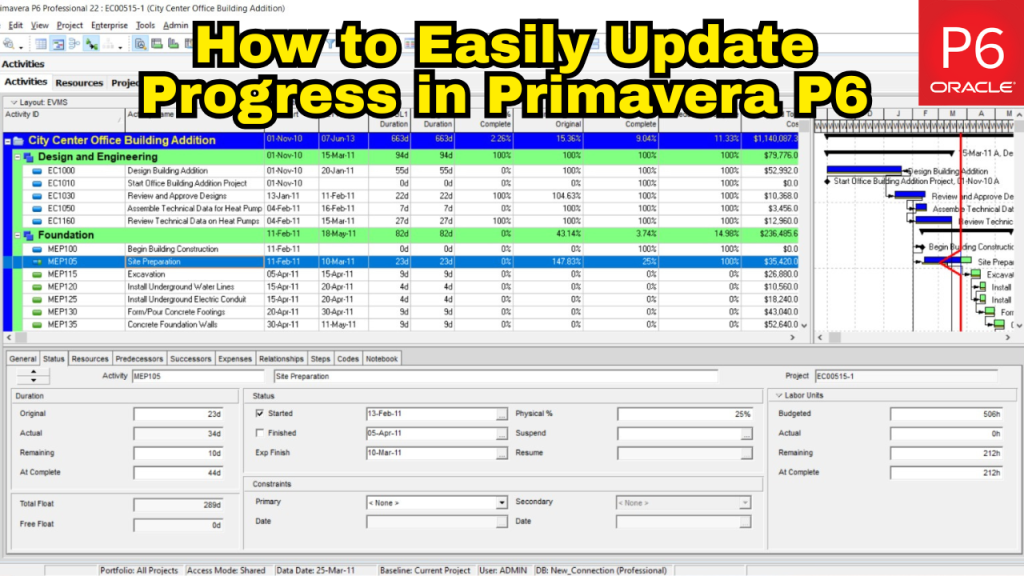
How to Easily Update Progress in Primavera P6l

How to Easily Update Progress in Primavera P6l

Keeping a project schedule up to date can feel overwhelming, especially when managing a construction project and reporting progress to the owner. But with the right schedule setup, Primavera P6 makes this process much easier.

This method focuses on creating a streamlined schedule that allows contractors to:

  • Quickly update actual progress for each reporting period
  • Clearly communicate what remains to be done

It’s a common and practical approach used across many construction projects — and it starts with building the right kind of baseline.

Step 1: Set Up the Baseline Schedule for Progress Tracking

Before anything else, ensure you’ve created a baseline project schedule. If your contract doesn’t require detailed resource or cost loading, you can simplify your schedule with the following Primavera P6 settings:

  • Duration Type: Fixed Duration and Units
  • Percent Complete Type: Physical
  • Activity Type: Set to Task Dependent for most activities, unless the task is a Milestone or Level of Effort (LOE)
Set Up the Baseline Schedule for Progress Tracking

Default “Duration Type”, “Percent Complete Type”, and “Activity Type” Settings

Once the baseline schedule is fully developed and approved, the next step is to prepare it for tracking progress. A simple way to do this is by creating a copy of the accepted baseline and renaming it for use as the first update.

Copy/paste baseline for use as 1 update

Step 2: Updating the Schedule Without Resource Assignments

When the progress data has been collected — either from the site team or through field observations — it’s time to input this information into the update schedule.

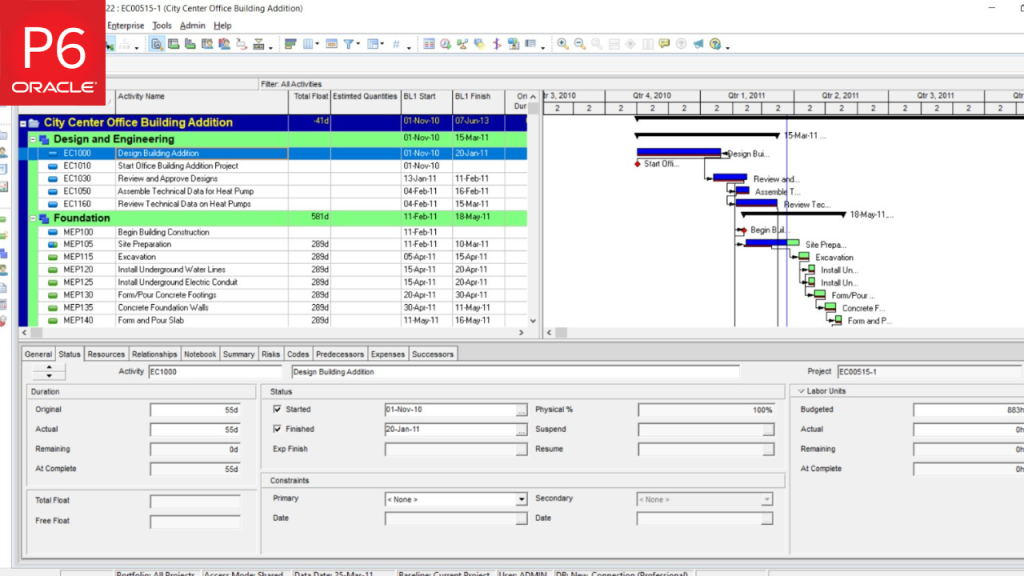
The recommended starting point is to enter all actual start and finish dates for the activities that have been worked on or completed during the update period.

Step 2: Updating the Schedule Without Resource Assignments
Adding actual dates at the “Details – Status” Area

This ensures the schedule reflects real progress before applying percent complete or adjusting remaining durations.

Setting the Data Date to schedule the update in Primavera P6

Setting the Data Date to schedule the update

At this stage, it’s a good practice to review and address any activities listed in the Out-of-Sequence (OOS) section of the Primavera P6 schedule log.

The Primavera P6 schedule log Out-of-Sequence, OOS activities list

Next, update the Remaining Duration (RD) or enter Estimated Finish Dates based on the latest input from the project team.

Set the remaining duration for an activity

Then, enter the progress in the Physical % Complete field, reflecting the actual work done.

⚠️ Important: Avoid manually adjusting the Duration % Complete field. Primavera P6 calculates this automatically based on the activity’s Original Duration, Actual Duration, and Remaining Duration.

After entering all updates, reschedule the project to apply the changes.

Activity with “Physical % Complete” and “Duration % Complete” entered

Once rescheduled, the project schedule will reflect the current as-built status, providing an accurate and up-to-date snapshot of progress.

Step 3: Reviewing Progress Against the Plan

This simplified update method makes it easy to track and compare physical progress against scheduled progress.

For instance, if an activity shows 50% Physical % Complete (based on actual work completed) but 70% Duration % Complete (based on remaining duration or an estimated finish date), it indicates that the production rate is behind plan. This insight can be used to take timely corrective actions for in-progress activities before delays escalate.

Identifying progress variance between physical and duration completion

Similarly, completed activities can be evaluated by comparing Original Duration with Actual Duration. A significant increase in actual duration signals lower-than-expected productivity.

Investigating these gaps can help identify the causes and prevent similar delays in current or upcoming tasks handled by the same crew or subcontractor.

Completed activity analysis based on actual vs. original duration

Step 4: Working with Resource and Cost-Loaded Schedules

When a project requires Resource and Cost Loading, the update process may vary slightly depending on the level of detail needed.

If the requirement is limited to Lump Sum (LS) cost loading — without tracking labor hours or material quantities — the basic update workflow described above remains effective.

To manage LS costs efficiently:

  • Create a labor resource for each trade, subcontractor, vendor, or the main contractor
  • Assign that single resource to the relevant activity
  • Enter the corresponding lump sum cost directly on the activity
Assigning a lump sum cost to a labor resource

Assigning a lump sum cost to a labor resource

For clarity and accountability, it’s recommended to assign only one resource per activity, making it easier to manage responsibility and track performance. In many cases, the USACE LS cost loading method is used — but manual cost entry is also acceptable depending on project requirements.

Example of a single-resource LS cost assignment

To align Cost % Complete with Physical % Complete, the Actual Total Cost is manually entered during the update. This ensures that invoicing reflects only the work that has been physically completed. Afterward, it’s important to verify that the Remaining Cost and At Completion Budgeted Cost values are accurate.

Manually entering Actual Total Cost to reflect work in place

However, if the project requires resource and cost loading based on hourly units, material quantities, or equipment usage, this simplified approach will not apply. In such cases, updates require more complex configurations — including adjustments to resource settings and task types — which fall outside the scope of this guide.

Learn How to Check EPC Project Schedule Baseline on

Final Thoughts

This method offers a straightforward and practical approach to updating progress in Primavera P6, especially when resource and cost tracking requirements are minimal. By focusing on physical progress, actual dates, and simple cost input, teams can maintain an accurate and actionable schedule throughout the project lifecycle.

The key is to build the schedule in a way that supports easy updates while still providing the owner and project team with the insights they need to track and manage performance effectively.

Want to learn more?

Join our upcoming live webinar where we’ll walk you through real-world Primavera P6 workflows, pro tips, and common pitfalls to avoid.

👉 Register now to save your spot!

How to Show 4 Baselines on the Gantt Chart in Primavera P6

How to Show 4 Baselines on the Gantt Chart in Primavera P6

In project management, baselines play a critical role in tracking performance over time. In Primavera P6, a baseline is essentially a snapshot of your project plan — capturing key information like start and finish dates, durations, resource assignments, and costs.

Displaying multiple baselines on the Gantt chart allows project managers to visually compare different versions of a plan — such as the original baseline, and subsequent updates made at various stages of the project. This comparison helps in evaluating how the project has evolved, identifying delays, and assessing overall performance.

In Primavera P6 Professional, you can display up to four baselines at the same time on the Gantt chart: one Project Baseline and up to three User Baselines (Primary, Secondary, and Tertiary).

In this step-by-step guide, we’ll show you how to create, assign, and display all four baselines on the Gantt chart.

Key Steps to Create 4 Baselines on Gantt Chart in Primavera P6

In Primavera P6 Professional, setting up baselines involves three main actions. These steps help capture the current project plan and prepare it for comparison on the Gantt chart:

  • Create a snapshot of the project at different stages by generating baselines
  • Assign each baseline to the appropriate slot (Project, Primary, Secondary, or Tertiary)
  • Label or describe the baselines clearly for reference and tracking

The first image below displays a sample project with four baselines created at different stages of development.

Key Steps to Create 4 Baselines on Gantt Chart in Primavera P6

The image above displays the initial project baseline along with three additional baselines created at various stages of the project. Each one reflects a different update point, allowing you to compare progress over time.

Step 1: Create Your Baselines

Let’s now walk through the steps to create all four baselines:

  1. First, click on the Project menu in Primavera P6.
  2. Select Maintain Baselines — this is where you’ll create your project snapshots.

In the next image, you’ll see four baselines listed — each taken at different data dates.

Step 1: Create Your Baselines

For example, one of the baselines (Construction Project B4) shows a date of January 7, 2021.

With the baselines created, the next step is to assign them.

Step 2: Assign the Baselines

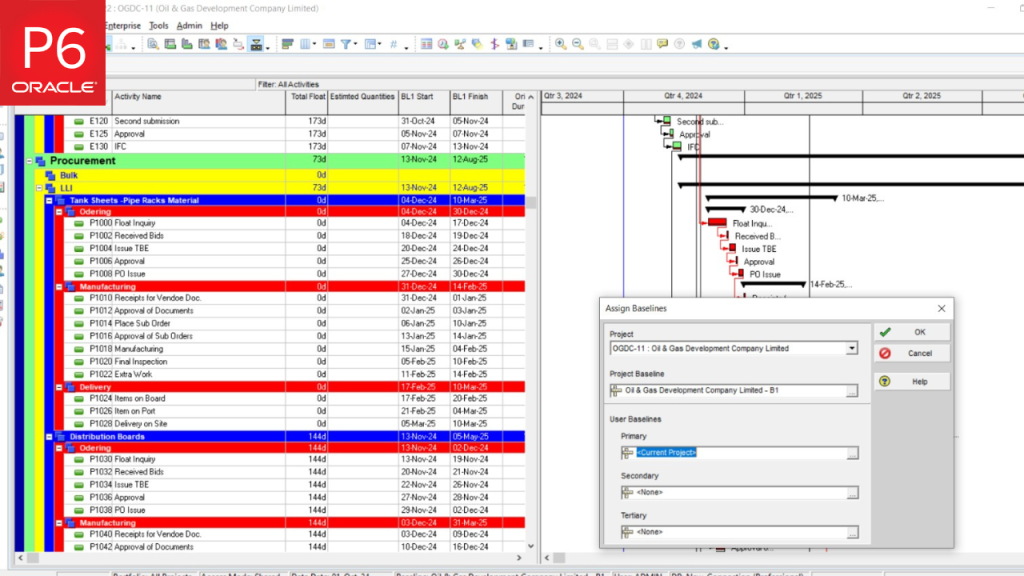
Next, go to the Project tab in the menu and select Assign Baselines.

  • Assign one baseline as the Project Baseline

This setup allows you to reference all four baselines simultaneously in your schedule.

Assign one baseline as the Project Baseline

The image below shows that the first baseline has been assigned as the Project Baseline at the start of the schedule.

The image below shows that the first baseline has been assigned as the Project Baseline at the start of the schedule.

Each of the created baselines is then assigned one by one to the Primary, Secondary, and Tertiary User Baseline slots.

Once the assignments are complete, the next step is to configure how these baselines appear on the Gantt chart.

Step 3: Customize the Gantt Chart to Show All Baselines

To display all four baselines on the Gantt chart:

  1. Click the Bars icon on the toolbar (or go to View > Bars).
Click the Bars icon on the toolbar (or go to View > Bars).

The image below shows the bar menu where short descriptions for all four baseline bars are listed near the bottom of the stack.

The image below shows the bar menu where short descriptions for all four baseline bars are listed near the bottom of the stack.

Each baseline bar is linked to a different timescale, but they all share the same standard filters for consistency.

2. Customize each bar:

In Primavera P6, the Bar Style menu lets you control how each baseline appears on the Gantt chart. You can customize key visual elements like:

  • Shape
  • Color
  • Style
  • Row position

Using distinct styles and rows for each baseline helps make your schedule easier to read and interpret at a glance. It avoids overlap and keeps everything organized.

In the image below, the settings for the Project Baseline Bar are highlighted. It has been placed on Row 2 and styled with a normal height and tall bar to make it stand out.

You’ll also notice that the Primary Baseline appears in the same image, with its own placement and styling configuration.

You’ll also notice that the Primary Baseline appears in the same image, with its own placement and styling configuration.

This step ensures each baseline is distinct and visually aligned on your Gantt chart.

Step 4: Adjust Row Heights for Better Visibility

Now that your baselines are styled and assigned, it’s time to fine-tune how they appear on the Gantt chart. Primavera P6 does not automatically adjust row heights to accommodate multiple bars. To keep everything clear and easy to read, each baseline bar should be placed on a separate row with a distinct visual style.

In the example below, the Secondary Baseline (labeled Second Baseline) is set to display on Row 3, using a regular-width and low-position style for visual separation.

In the example below, the Secondary Baseline (labeled Second Baseline) is set to display on Row 3, using a regular-width and low-position style for visual separation.

The Tertiary Baseline (labeled Third Baseline) is also displayed on Row 3, but with a different bar style to avoid confusion.

The Tertiary Baseline (labeled Third Baseline) is also displayed on Row 3, but with a different bar style to avoid confusion.

At this point, you’ll notice that each baseline bar uses a mix of normal, heavy, and low styles. This variation makes each baseline easy to identify while keeping the chart clean and structured.

Setting the Row Height

To ensure all bars are clearly visible:

  • Go to the View menu
  • Select Table, Font, and Row
Go to the View menu


Select Table, Font, and Row

3. In the popup window, check “Keep current row heights”

4. Set the Row Height e.g, 22

 Then, click OK

 Then, click OK

Once applied, your Gantt chart will display all four baselines with properly spaced rows and clear visual styling.

Once applied, your Gantt chart will display all four baselines with properly spaced rows and clear visual styling.

Bonus Tip

To enhance your understanding of Primavera P6’s planning capabilities, check out our guide on How to Remove Actuals from a Primavera P6 Schedule.

Conclusion

Displaying multiple baselines on the Gantt chart in Primavera P6 allows you to analyze how your project has evolved over time. By setting the appropriate rows, styles, and bar types, you can visualize your original plan alongside its updates — making it easier to track deviations and improve future planning.

Remember, Primavera P6 won’t adjust row height for you — so take time to format your chart for maximum clarity.

Ready to master more Primavera P6 features like this? Our Primavera P6 training programs are designed to turn beginners into confident, real-world users — one hands-on lesson at a time.

How to Remove Actuals from a Primavera P6 Schedule (Step-by-Step)

How to Remove Actuals from a Primavera P6 Schedule (Step-by-Step)

In an ideal world, your Primavera P6 schedule would be perfectly planned and executed — but in real projects, mistakes happen. Maybe you updated progress too early, set the wrong baseline, or assigned resources before finalizing logic. In such cases, removing actuals from the schedule becomes necessary.

In an ideal world, your Primavera P6 schedule would be perfectly planned and executed — but in real projects, mistakes happen. Maybe you updated progress too early, set the wrong baseline, or assigned resources before finalizing logic. In such cases, removing actuals from the schedule becomes necessary.

⚠️ Note: You’ll need a basic understanding of P6 features like Global Change. If you’re new to the tool, don’t worry — these steps will still give you insight into the kind of control Primavera offers.

How to Remove Actuals from a Primavera P6 Schedule (Step-by-Step)

These columns will help us verify at the end whether the schedule has been successfully reset to its original state at the project start.

When Would You Need to Remove Actuals?

Here are a few scenarios where this might come in handy:

  • The baseline wasn’t set before applying actuals.
  • Resource assignments were incorrect at the time of updating.
  • The logic network had errors that affected progress tracking.
  • You need to rework the plan and restart progress tracking.

Keep in mind, once you remove actuals, you’ll have to re-enter progress manually — a task that’s time-consuming but worth it if done right.

7 Steps to Remove Actuals from Your Primavera P6 Schedule

Step 1: Adjust Project Calculation Settings

Start by going to the Projects view and selecting the project you want to reset.

Navigate to the Calculations tab and do the following:

  • Check the box: “Link Budget and At Completion for not started activities.
  • Select the option: “Reset Remaining Duration and Units to Original.

This ensures that when we later change the status of all activities to “Not Started,” their Remaining Duration will match the Original Duration.

This ensures that when we later change the status of all activities to “Not Started,” their Remaining Duration will match the Original Duration.

💡 Tip: The next few steps involve resetting various actual values to zero. While you could use the Fill Down method, it’s not ideal for large projects. Using Global Change is more efficient — and reusable for future schedules.

Step 2: Reset Actual Labor Units and Costs

Use Global Change to set all Actual Labor Units and Actual Labor Costs to zero.
This is faster than manual “Fill Down” (especially for schedules with hundreds or thousands of activities) and also reusable for future schedules.

Reset Actual Labor Units and Costs

Step 3: Reset Actual Nonlabor Units and Costs

Next, create a similar Global Change to reset:

  • Actual Nonlabor Units = 0
  • Actual Nonlabor Cost = 0
Reset Actual Nonlabor Units and Costs

This helps clean up values assigned to things like equipment or services.

Step 4: Reset Actual Material Units

Still using Global Change, set all Actual Material Units to 0.

This clears any tracked material consumption from the progress log.

Reset Actual Material Units

Step 5: Reset Expense Cost % Complete

To reset any expense-related progress, create a Global Change to:

  • Change Expense Cost % Complete = 0

This brings all expense cost progress back to zero.

Reset Expense Cost % Complete

Step 6: Change Activity Status to “Not Started”

Now it’s time to wipe the slate clean. Use Global Change to update the status of all activities to:

  • Not Started

This tells Primavera P6 to treat all activities as if no progress has occurred.

Step 6: Change Activity Status to “Not Started”

Step 7: Reschedule the Project to the Planned Start

Finally, open the F9 (Schedule) tool and set the Data Date to the project’s original Planned Start date.

Finally, open the F9 (Schedule) tool and set the Data Date to the project’s original Planned Start date.

Run the time analysis. This will realign your schedule to its original planned timeline, free of any actuals.

Reschedule the Project to the Planned Start

What Should You See After These Steps?

If done correctly, your schedule will now show:

  • Performance % Complete = 0
  • Remaining Duration = Original Duration
  • Actual Labor / Nonlabor Units = 0
  • Actual Total Cost = 0
Reschedule the Project to the Planned Start

In other words — it’s back to square one.

Pro Tip: Save Your Global Change Scripts

Instead of recreating each rule from scratch every time, save your Global Change scripts. You can reuse them across other projects when needed.

Final Thoughts

Removing actuals is not an everyday task, but it’s a skill that can save your schedule from critical errors or missteps. Whether you’re still learning Primavera P6 or already applying it in live projects, mastering these techniques puts you in better control of your timelines.

Looking to deepen your Primavera P6 expertise and handle complex scenarios like this with confidence? Explore our hands-on training programs — designed to make you a pro in real-world project scheduling.

For More detailed Learning of Primavera p6

A Step-by-Step Guide to Primavera P6 Software Basic Settings

Primavera P6 software is one of the most powerful project management tools used across industries like construction, engineering, IT, and manufacturing. Designed by Oracle, it helps professionals plan, schedule, and control large-scale projects with efficiency. With over 100,000 companies worldwide using Primavera P6 software, it has become a standard for managing complex projects while ensuring timely delivery and cost control. However, before diving into project execution, it’s crucial to configure the basic settings to align the software with your project’s needs.

In this guide, we’ll walk you through the essential Primavera P6 software setting. We’ll help you understand how to navigate the set up customized settings as per your project’s need. By the end of this guide, you’ll have a solid foundation to set up Primavera P6 software for seamless project planning and execution.

Why is it Important to Understand Primavera P6 Software Basic Settings Before Starting a Project?

Understanding the basic settings of Primavera P6 software is crucial for several reasons. First, it ensures that the software is customized to meet the specific needs of your projects, allowing for more accurate scheduling, resource allocation, and tracking. Second, properly setting up your Admin settings, calendars, and project structures from the start minimizes the risk of errors and confusion later in the project lifecycle.

By taking the time to configure the software correctly, you can enhance collaboration, improve data accuracy, and ultimately drive better project outcomes. Whether you’re managing a single project or a portfolio, having a solid grasp of these fundamental settings enables you to work more efficiently and ensure that all aspects of the project are aligned for success.

Key Features of Primavera P6 Software Basic Settings

To ensure successful project management in Primavera P6, it’s crucial to configure the software’s basic settings correctly from the beginning. These settings serve as the foundation for scheduling, resource management, and reporting, helping you align the tool with your specific project needs.

Primavera P6 Software Admin Settings

Before starting a project in Primavera P6 software, it’s important to configure the Admin Settings to ensure smooth project management. These settings define user access, security, and system preferences.

  • User Preferences: Adjust general settings like date format, currency, time units.
Adjust general settings like date format, currency, time units in Primavera p6
Primavera P6 Guide
  • User Access & Security: Assign roles and permissions to team members to control who can view or edit project data.
  • Database Settings: Configure database connections to ensure project data is stored securely and is accessible when needed.

Setting up admin preferences correctly helps streamline project workflows and prevents unauthorized changes to critical project data.

Primavera P6 Calendar settings

Calendar Settings

Calendars in Primavera P6 software define the working days and hours for a project, ensuring accurate scheduling. Primavera P6 allows you to set up different types of calendars:

  • Global Calendar: Used across multiple projects with a standard work schedule.
  • Project Calendar: Specific to a single project, allowing for customized workdays and shifts.
  • Resource Calendar: Assigned to individual resources, reflecting their availability and work hours.
Resource Calendar in Primavera P6
Personal Resources Calendar
Oil and Gas Project Calendar in Primavera P6

When configuring a calendar, you can define workweeks, holidays, and exceptions to match real-world schedules. Choosing the right calendar ensures accurate activity durations and prevents scheduling conflicts.

 define workweeks, holidays, and exceptions in Primavera P6
Calendar Weekly Hours set in Primavera P6
setting hours in Primavera P6
Global Calendar Setting in Primavera P6 Guide

Primavera P6 Software Enterprise Project Structure (EPS)

The Enterprise Project Structure (EPS) in Primavera P6 is a hierarchical framework used to organize and manage multiple projects efficiently. It allows users to categorize projects based on departments, locations, clients, or any other relevant classification.

Key aspects of EPS setup:

  • Defining the EPS Hierarchy: Create multiple levels to organize projects based on company structure.
  • Assigning User Access: Restrict or grant access to specific projects within the EPS.
  • Managing Large-Scale Projects: Helps in tracking progress and performance across multiple projects within an organization.

Setting up EPS correctly ensures a clear structure, making project management more efficient and scalable.

Enterprise Project Structure in Primavera P6
Setting up EPS correctly Primavera P6

Organizational Breakdown Structure (OBS)

The Organizational Breakdown Structure (OBS) defines the roles and responsibilities of individuals managing projects in Primavera P6 software. Unlike EPS, which organizes projects, OBS focuses on people and their project-related responsibilities.

Key aspects of OBS:

  • Assigning Project Managers: OBS links responsible individuals to specific projects or EPS levels.
  • Defining Project Access Rights: Ensures that only authorized users can modify or manage certain projects.
  • Customizing Based on Organizational Needs: OBS can be structured according to departments, job roles, or project teams.

A well-structured OBS ensures clear accountability, making it easier to track project ownership and streamline communication.

Organizational Breakdown Structure (OBS) in Primavera P6
Organizational Breakdown Structure (OBS) in Primavera P 6 Software

Project Dashboard

The Project Dashboard in Primavera P6 provides an overview of key project details, helping users monitor progress, track milestones, and identify potential issues. It serves as a central hub for project managers to access real-time project data.

Key components of the dashboard:

  • Project Summary: Displays essential details such as project start and finish dates, budget, and status.
  • Milestone Tracking: Highlights critical project milestones and deadlines.
  • Performance Metrics: Shows earned value analysis, cost performance, and schedule performance indicators.

A well-configured dashboard ensures quick access to crucial project insights, helping project managers make informed decisions.

Creating a New Project

To start working in Primavera P6 software, you first need to create a project and define its basic parameters. Here’s a step-by-step process:

  1. Go to the Projects Tab: Click on “File” > “New” to start a new project.
Creating a New Project in Primavera P6

2. Select EPS Location: Choose where the project will be placed within the Enterprise Project Structure (EPS )

Select EPS Location: Choose where the project will be placed within the Enterprise Project Structure (EPS )

3. Project ID & NAME :

Add Project Name in Primavera P6

4. Set Start & Finish Dates: Define the project timeline to establish a baseline schedule.

Set Project Start and End Date

5. Responsible Manager : Select a global, project-specific, or resource calendar to ensure accurate scheduling.

Responsible Manager : Select a global, project-specific, or resource calendar to ensure accurate scheduling.

6. Standard Rate:

Set Standard Rate :

7. Once the project is created, it serves as the foundation for adding WBS , activities, resources, and dependencies. Proper setup ensures smooth project execution and tracking.

Work Breakdown Structure (WBS)

The Work Breakdown Structure (WBS) in Primavera P6 organizes the project into a hierarchical structure, breaking it down into manageable sections. This helps in structuring the project for better tracking and execution.

Click Project and Then click WBS from Dropdown window

Key aspects of WBS:

  • Hierarchical Organization: Projects are divided into phases, deliverables, and tasks, making large projects easier to manage.

Level-01 WBS

Leve-01 WBS
Level-02 WBS

WBS have many Levels

Top WBS level is called Control Account

Lowest Level of WBS is Work Package

Planning Package is all WBS levels which are in between Control Account and Work Package

A well-defined WBS ensures better project visibility and helps teams stay organized throughout the project lifecycle.

Dashboard Views in Primavera P6 Software (Gantt Chart & Network Diagram)

Primavera P6 provides different dashboard views to help users visualize project schedules and dependencies. The two most commonly used views are:

  • Gantt Chart: A bar chart that represents project activities along a timeline. It shows task durations, dependencies, and progress
Gantt Chart in Primavera P6
  • Network Diagram: A flowchart-style view that displays the logical relationships between activities. It helps in analyzing the sequence of tasks and identifying the critical path.
Network Diagram: A flowchart-style view that displays the logical relationships between activities. It helps in analyzing the sequence of tasks and identifying the critical path.

By switching between these views, users can track project schedules efficiently and make necessary adjustments to keep the project on track.

Activity Details

In Primavera P6, activities represent the individual tasks that make up a project. Configuring activity details correctly is essential for accurate scheduling and tracking.

Key elements of activity details:

Activity ID & Name: Each task is assigned a unique ID and descriptive name.

Key elements of activity details:
  • Activity Type: Defines the type of task (e.g., task-dependent, milestone, resource-dependent).
Activity Type: Defines the type of task (e.g., task-dependent, milestone, resource-dependent).
  • Relationships: Establishes dependencies between activities (Finish-to-Start, Start-to-Start, etc.).
  • Duration & Constraints: Specifies how long an activity will take and any constraints that affect scheduling.
Duration & Constraints: Specifies how long an activity will take and any constraints that affect scheduling.

Entering accurate activity details ensures better project planning, helping teams stay on schedule and meet project deadlines.

Resource Window in Primavera P6

The Resource Window in Primavera P6 software is used to manage labor, material, and equipment resources for a project. Proper resource allocation is essential to prevent bottlenecks and cost overruns.

The Resource Window in Primavera P6 software is used to manage labor, material, and equipment resources for a project. Proper resource allocation is essential to prevent bottlenecks and cost overruns.

Key functionalities of the Resource Window:

  • Adding & Defining Resources: Users can create and categorize labor, non-labor, and material resources with cost rates.
Key functionalities of the Resource Window in Primavera P6
  • Assigning Resources to Activities: Resources are linked to tasks to determine workload distribution.
Assigning Resources to Activities: Resources are linked to tasks to determine workload distribution.
  • Resource Leveling: Ensures no resource is overallocated and adjusts schedules accordingly

Managing resources effectively in Primavera P6 helps maintain project efficiency while controlling costs.

Bars, Time Scales, and Columns

Primavera P6 allows customization of key elements in your project view, such as bars, time scales, and columns, to make project data more visual and easier to understand.

  • Bars: Represent activities or milestones on the Gantt chart. You can color-code or customize bar styles to reflect different activity statuses or types (e.g., planned, in-progress, or completed).
Bars in Primavera P6
Primavera P6 allows customization of key elements in your project view,
  • Time Scales: Customize the time units displayed in the Gantt chart, such as days, weeks, months, or years, to match the project’s timeline and provide a clear overview of project phases.
Time Scales in Primavera P6
Customize the time units displayed in the Gantt chart, such as days, weeks, months, or years, to match the project's timeline and provide a clear overview of project phases.
  • Columns: Allows you to display essential project information (like activity name, start and finish dates, duration, and status) in a tabular format. You can add, remove, or reorder columns to highlight the most relevant data for your team.
Activity Codes in Primavera P6

Customizing these elements makes project information more accessible and actionable, helping you focus on what’s most important for project success.

Grouping and Sorting in Primavera P6 Software

Grouping and sorting in Primavera P6 enables users to organize and filter project data based on different criteria. This is especially useful for large projects with many tasks and resources.

Key aspects of grouping and sorting:

  • Grouping: Allows you to organize activities by WBS, resource, activity type, or any other parameter that fits the project’s needs. This makes it easier to view specific project sections or types of activities.
Grouping: Allows you to organize activities by WBS, resource, activity type, or any other parameter that fits the project’s needs. This makes it easier to view specific project sections or types of activities.
  • Sorting: Helps arrange activities in a particular order (e.g., alphabetically, by dates, or by priority) to streamline the planning process and improve tracking.
  • Filters: Use filters to display only relevant data, such as late activities, critical path tasks, or tasks assigned to a particular team member.
Filters: Use filters to display only relevant data, such as late activities, critical path tasks, or tasks assigned to a particular team member.
Fiilters in Primavera P6

Grouping and sorting in Primavera P6 enhances project visibility and decision-making, making it easier for users to track and analyze data.

For More detailed Learning of Primavera p6

Conclusion:

Mastering the basic settings in Primavera P6 software is crucial for ensuring your project management process is both efficient and effective. By configuring elements like Admin settings, calendars, project structures, and resources, you’re not just setting up a tool – you’re building a solid foundation for streamlined project execution. These settings enable you to track progress, allocate resources, and manage timelines with precision, helping you avoid common project pitfalls and ensuring successful outcomes.

Now that you understand how to navigate these key settings, you’re better equipped to leverage Primavera P6 to its fullest potential.

Ready to take your skills further?

Explore our comprehensive Primavera P6 courses and transform your project management approach today!

Primavera P6 vs MS Project

Primavera P6 vs MS Project: Which One is Right for Your Projects?

Effective project planning is crucial across industries, from construction and engineering to IT, manufacturing, and energy. Delays, budget overruns, and resource mismanagement can significantly impact project outcomes. To keep everything on track, engineers and project managers rely on advanced scheduling tools like Primavera P6 and Microsoft Project (MS Project).

According to the Project Management Institute (PMI), only 55% of projects are completed on time, while 45% suffer from scope creep. In industries where projects are complex and involve multiple stakeholders, choosing the right planning software is critical to meeting deadlines and staying within budget.

Both Primavera P6 and MS Project are widely used for scheduling, resource management, and progress tracking. However, they serve different types of projects and industries. In this blog, we’ll compare these two tools to help you determine which one best fits your project planning needs

What is Primavera P6?

What is Primavera P6?

Primavera P6 is a high-performance project management software designed for large-scale, complex projects across various industries, including construction, engineering, manufacturing, energy, and aerospace. Developed by Oracle, it is widely used for project scheduling, resource allocation, and risk management in industries where precision and compliance are critical.

One of the biggest advantages of Primavera P6 is its ability to handle thousands of activities, dependencies, and constraints without compromising performance. It is built to support multi-user collaboration, making it ideal for large teams managing multiple projects simultaneously.

While Primavera P6 is a powerful tool, it has a steeper learning curve compared to other project management software. However, for engineers handling high-value projects with strict deadlines, it provides the depth and control needed to ensure successful project execution.

What is Microsoft Project (MS Project)?

Microsoft Project (MS Project) is a widely used project management tool designed for small to mid-sized projects across various industries, including IT, healthcare, finance, and general business operations. Developed by Microsoft, it is known for its user-friendly interface and seamless integration with other Microsoft products like Excel, SharePoint, and Teams.

MS Project offers essential project planning features such as scheduling, task dependencies, and resource management. It is well-suited for teams that need a straightforward and flexible tool to manage project timelines and track progress.

Compared to Primavera P6, MS Project is easier to learn and implement, making it a preferred choice for smaller projects or teams that do not require highly detailed scheduling. However, it may lack the advanced functionalities needed for large-scale, complex projects with multiple stakeholders.

Primavera P6 vs. MS Project: Key Differences Between Both Softwares

Both Primavera P6 and MS Project are widely used for project scheduling and management, but they serve different types of projects and industries. Below is a detailed comparison of their key features and capabilities.

Primavera P6 vs. MS Project: Key Differences Between Both Softwares

1. Ease of Use

  • Primavera P6: Known for its steep learning curve, Primavera P6 is a complex tool that requires specialized training. It has a detailed, data-heavy interface and offers extensive control over scheduling, resource management, and risk analysis. Engineers working on large projects need to invest time in mastering it.
  • MS Project: More user-friendly and intuitive, MS Project is easier to learn, especially for teams already using Microsoft products. It follows a Gantt chart-based approach, making it accessible for beginners and mid-level users.

Verdict: If you need quick adoption and ease of use, MS Project is the better choice. However, for complex projects requiring deep control, Primavera P6 is worth the learning investment.

2. Scheduling Capabilities

  • Primavera P6: Uses a Critical Path Method (CPM) scheduling engine that supports multiple calendars, activity codes, and advanced constraints. It allows unlimited baselines, making it ideal for tracking project changes over time.
  • MS Project: Also supports CPM scheduling but with limitations. It allows only one baseline per project, which can be restrictive for large-scale projects requiring multiple schedule comparisons.

Verdict: Primavera P6 offers more powerful and flexible scheduling options, making it the preferred choice for large-scale projects.

3. Resource & Cost Management

  • Primavera P6: Provides advanced resource leveling, detailed cost tracking, and labor & material resource allocation. It allows multi-project resource sharing, ensuring efficient workforce planning.
  • MS Project: Has basic resource and cost tracking, but it lacks the depth needed for complex, multi-phase projects. It is better suited for projects with simpler resource structures.

Verdict: Primavera P6 excels in detailed resource and cost management, making it better for project planning.

4. Collaboration & Multi-User Access

  • Primavera P6: Supports multi-user collaboration, meaning different team members can work on the same project file simultaneously without conflicts. It is built for enterprise-level collaboration.
  • MS Project: The desktop version is single-user only, meaning only one person can edit the project file at a time. However, MS Project Online offers multi-user collaboration but lacks the robust controls of Primavera P6.

Verdict: Primavera P6 is the better choice for large teams needing real-time collaboration.

5. Integration & Compatibility

  • Primavera P6: Integrates with ERP systems, BIM software, and other enterprise tools. It also works with Excel, AutoCAD, and SAP but requires technical expertise for integration.
  • MS Project: Seamlessly integrates with Microsoft Office, SharePoint, and Teams, making it ideal for companies already using Microsoft products. However, integration with third-party tools is limited compared to Primavera P6.

Verdict: If your company relies on Microsoft tools, MS Project is the best fit. But for enterprise-level integrations, Primavera P6 is the stronger option.

6. Customization & Reporting

  • Primavera P6: Provides highly customizable reports with advanced filters and graphical analysis. It supports custom fields, WBS (Work Breakdown Structure), and Earned Value Management (EVM) for in-depth performance tracking.
  • MS Project: Offers basic reporting features with Gantt charts and visual timelines but lacks the depth of Primavera P6’s analytics.

Verdict: Primavera P6 is far superior in reporting and analytics, making it ideal for projects requiring in-depth data insights.

7. Scalability & Project Complexity

  • Primavera P6: Built for large-scale, multi-project environments, Primavera P6 can handle thousands of activities, multiple workstreams, and detailed resource tracking.
  • MS Project: Best for small to mid-sized projects. While it can handle complex schedules, it does not scale as efficiently as Primavera P6 for enterprise-level projects.

Verdict: For mega projects, Primavera P6 is the clear winner.

8. Cost & Licensing

  • Primavera P6: Requires a higher investment with subscription-based pricing. It is best suited for large organizations with dedicated planning teams.
  • MS Project: More affordable, with flexible licensing options, making it ideal for small and medium-sized businesses.

Verdict: MS Project is the cost-effective choice for smaller teams, but Primavera P6 provides better value for large-scale projects.

Industry Use Cases for Primavera P6 vs MS Project

Industry Use Cases for Primavera P6 vs MS Project

When selecting project management software, it’s essential to consider the specific industry your projects fall into. Both Primavera P6 and MS Project cater to various industries, but they excel in different areas due to their unique features.

Industries Best Fit for Primavera P6

Primavera P6 is highly favored in industries with complex, large-scale projects that require advanced scheduling, resource allocation, and risk management. It is most commonly used in:

  • Construction
  • Engineering
  • Energy & Utilities
  • Aerospace
  • Manufacturing

Industries Best Fit for MS Project

MS Project, on the other hand, is often used in industries where projects are generally smaller and less complex, with an emphasis on ease of use and integration with other business tools. It is commonly used in:

  • IT & Software Development
  • Healthcare
  • Finance & Banking
  • Marketing & Advertising
  • General Business Operations

Both tools are versatile and can be applied to a wide range of industries, but understanding which software is best suited for your specific field can greatly enhance the efficiency of your project planning and execution.

Which One Should You Choose?

  • Choose Primavera P6 if you manage large, complex construction projects that require detailed scheduling, cost tracking, and enterprise-level collaboration.
  • Choose MS Project if you need an affordable, easy-to-use scheduling tool for small to mid-sized projects with basic planning needs.

Both tools have their strengths, but the right choice depends on the size and complexity of your projects.

Final Thoughts on Primavera P6 vs. MS Project

In the battle of Primavera P6 vs MS Project, each tool has its strengths depending on the nature of your projects. Primavera P6 stands out for large, complex projects that require detailed resource management, advanced scheduling, and multi-user collaboration. It’s perfect for industries such as construction, engineering, and energy where projects are high-stakes and require meticulous planning.

MS Project, on the other hand, excels for smaller to mid-sized projects and teams looking for a more user-friendly, cost-effective solution. It integrates seamlessly with Microsoft tools, making it ideal for industries like IT, healthcare, and finance, where simpler project management is sufficient.

No matter your choice, mastering either tool can significantly improve your project planning and execution.

Ready to gain in-depth expertise in Primavera P6?

Join our training programs and take the first step toward becoming a skilled project manager equipped to handle projects of any size and complexity.

Sign up now to get started!

Watch our free training programs here.