Can Fresher Civil Engineers Learn Primavera P6 Software?

Can Fresher Civil Engineers Learn Primavera P6 Software?

In the fast-paced world of construction and civil engineering, possessing the right skills can distinguish fresher engineers from the rest. One tool that has become almost essential for managing complex projects is Primavera P6. Many beginners wonder if it’s too advanced for someone just starting their career. 

In this guide, we will walk you through how freshers can get started and the key features to focus on to become proficient in this powerful software.

Why Should Fresher Civil Engineers Learn Primavera P6?

Primavera P6 is a professional-grade project management software widely used in large-scale infrastructure and construction projects. It helps engineers plan, schedule, and control complex projects with numerous tasks, resources, and dependencies. For a fresher civil engineer, gaining knowledge in project planning through Primavera P6 can significantly enhance their employability. 

Become a Top-Notch Engineer!

Here are 4 career secrets that every engineer should know for career growth:

Is Primavera P6 Too Difficult for Freshers to Learn?

Many fresher civil engineers worry that Primavera P6 is too complex for someone just starting. While it is a sophisticated tool, its interface is user-friendly for beginners. The software focuses on critical project management elements, including activity definition, resource allocation, baseline scheduling, and risk management. 

Structured online courses, tutorials, and practical exercises allow newcomers to understand Primavera P6 Project planning. This is where Skillsage professional training programs make a real difference. At Skillsage, we offer step-by-step learning paths for freshers and working professionals who want to master Primavera P6 with practical exposure. Our Primavera P6 courses include:

  1. Primavera P6 – EPC Planning Control Course (Level 2):  This course helps engineers master the industry’s leading project management software and strengthen career prospects.
  2. Primavera P6 – Plant Shutdown Management Course (Level 3): This advanced course focuses on planning and scheduling plant shutdowns and turnarounds using Primavera P6.
  3. Delay Analysis and Claims Management Using Primavera P6: This specialized course trains engineers to handle complex project delays and claims professionally.

What Are the Key Features Fresher Engineers Should Focus On?

To effectively learn Primavera P6, fresher civil engineers should focus on the following features:

  1. Work Breakdown Structure (WBS): Learn how to divide a project into smaller, manageable tasks. This is the foundation of project planning in P6.
  2. Activity Scheduling: Define activity durations, dependencies, and milestones to create realistic project timelines.
  3. Resource Management: Allocate workforce, equipment, and materials efficiently.
  4. Critical Path Method (CPM): Identify the most crucial tasks that impact the project deadline.
  5. Reporting Tools: Familiarize yourself with dashboards and reports to track project progress effectively.

How Can Freshers Learn Primavera P6 Effectively?

There are several ways fresher civil engineers can learn Primavera P6:

  • Online Tutorials and Video Courses: Platforms like Udemy, Coursera, and LinkedIn Learning offer step-by-step courses designed for beginners.
  • Practical Simulations: Practice on mock projects to understand real-life scenarios and workflow.
  • Workshops and Webinars: Participate in sessions led by experienced project managers to gain insights into best practices.
  • Mentorship: Seek guidance from senior engineers who use Primavera P6 daily.

What Challenges Might Fresher Engineers Face While Learning Primavera P6?

While it is possible for freshers to learn Primavera P6, there are some challenges:

  • Complex Interface: Initially, the sheer number of options and features can be overwhelming.
  • Technical Terminology: Understanding project management jargon may take time.
  • Time Management: Balancing software learning with academic or job responsibilities can be tricky.

Explore the Benefits of Primavera P6!

Here’s a detailed guide on how Primavera P6 benefits project management:

Conclusion

Fresher civil engineers can definitely learn the Primavera P6 software and gain its benefits in career development. By focusing on Primavera P6 Project planning features and using online resources, beginners can quickly become proficient users.

In this guide, we’ve discussed the importance of Primavera P6 for civil engineers, key features to learn, and potential challenges. It also highlighted how knowledge of project planning in P6 can enhance a fresher’s professional growth.

Is Primavera P6 the Best Tool for Managing Projects?

Is Primavera P6 the Best Tool for Managing Projects?

Managing complex projects requires more than just timelines and task lists. It demands precision, scalability, and control. This is where enterprise-grade software comes into play. Among the many options available today, Primavera P6 often stands out as a preferred solution for large and complex initiatives. But is it really the best choice? To answer that, it’s essential to understand how Primavera P6 and project management work together to support modern project environments. So, let’s discuss!

What Is Primavera P6?

Primavera P6 is a professional project management software developed by Oracle, widely used in industries such as construction, engineering, oil and gas, infrastructure, and manufacturing. It is designed to manage large-scale, multi-phase projects with thousands of activities, resources, and dependencies. Unlike basic tools, Primavera P6 focuses on long-term planning, advanced scheduling, and detailed performance tracking.

Why Project Managers Choose Primavera P6?

One of the primary reasons organizations adopt Primavera P6 is its ability to manage complex projects effectively. Large projects often involve multiple stakeholders, overlapping schedules, and limited resources. Primavera P6 allows project managers to break down these complexities into manageable components while maintaining full visibility across the project lifecycle.

Another major advantage is its robust scheduling engine. Primavera P6 uses the critical path method (CPM) scheduling, which helps teams identify tasks that directly impact project completion. 

Benefits of Primavera P6 in Project Management

Below are the key benefits that make Primavera P6 a powerful and reliable tool for modern project management:

Planning Capabilities That Set It Apart

Effective project planning is at the heart of successful project delivery, and this is one area where Primavera P6 excels. The software allows teams to create detailed work breakdown structures (WBS), define activity relationships, and set realistic timelines based on logic rather than guesswork.

In complex environments, Primavera P6 project planning enables managers to account for constraints, milestones, and dependencies with a high level of accuracy. You can model different scenarios, compare baseline schedules, and assess how changes will affect deadlines and costs before they happen.

Additionally, Project planning in P6 supports multi-project environments. This is especially valuable for organizations managing portfolios, as it enables the efficient allocation of shared resources across multiple projects without conflicts.

Resource and Cost Management

Beyond scheduling, Primavera P6 offers strong resource and cost management features. Project managers can assign labor, equipment, and materials to specific tasks, track availability, and monitor usage over time. This ensures resources are neither overallocated nor underutilized.

Cost tracking is equally powerful. Primavera P6 allows you to estimate budgets, track actual costs, and forecast future expenses. When combined with earned value management (EVM), teams gain deep insights into cost performance and schedule efficiency.

These capabilities make Primavera P6 and project management particularly effective in industries where budgets are tight and delays can lead to significant financial losses.

Reporting, Monitoring, and Control

Another strength of Primavera P6 is its reporting and analytics. The software provides customizable dashboards, progress reports, and performance metrics that help stakeholders stay informed. Managers can quickly identify delays, analyze risks, and take corrective action before minor issues become major problems.

Baseline comparison is another critical feature. By comparing planned schedules with actual progress, teams can measure performance objectively and improve decision-making throughout the project lifecycle.

Want to Learn More About Primavera P6!

Here’s our detailed guide to the Primevera P6 free course for pipeline construction projects:

Conclusion

For organizations handling complex schedules, large teams, and strict deadlines, the answer is often yes. When used correctly, Primavera P6 and project management form a powerful combination that allows better planning. 

In this guide, we explored what Primavera P6 is and why project managers rely on it for complex projects. We discussed its key benefits and also addressed when Primavera P6 is the right fit for smaller or simpler projects.

In short, Primavera P6 helps project teams plan with greater accuracy, allocate resources efficiently, control costs, and monitor progress in real time. By identifying risks early and keeping budgets aligned, project managers can avoid cost overruns and deliver projects more predictably.

What are The Advantages of Activity Steps in Primavera P6

What are The Advantages of Activity Steps in Primavera P6?

Primavera P6 is a powerful project management tool, but its real value depends on how well your schedule is structured. Activity steps help break complex activities into clear, manageable actions, making progress easier to track and control. By using activity steps effectively, you improve visibility, strengthen accountability, and maintain better control over timelines. In this guide, we’ll explore the key advantages of activity steps in Primavera P6 and how they help you manage projects more efficiently.

Want to Learn More About Primavera P6!

Here’s our detailed guide on FREE Primavera P6 Training for Road Construction Project.

How to Use Activity Steps?

Before understanding the advantages of activity steps, it’s important to understand how activity steps break a single activity into measurable components:

  1. Start by updating the project calculations so progress is measured using activity steps.

Source: https://planningengineer.net/comprehensive-guide-to-using-activity-steps-in-primavera-p6/

  1. Change the % Complete Type of the activities that include steps to Physical. 

Source: https://planningengineer.net/comprehensive-guide-to-using-activity-steps-in-primavera-p6/

  1. In this example, we’ll use RC Column as the activity. Add steps such as shuttering, steel fixing, concrete pouring, and de-shuttering, then assign a weight to each step.

Source: https://planningengineer.net/comprehensive-guide-to-using-activity-steps-in-primavera-p6/

  1. Step Weight represents your estimated contribution of each step to the overall activity. Here, we assumed a total weight of 8. Shuttering was assigned 2 out of 8. Once weights are entered, Primavera P6 automatically calculates the Step Weight Percent.

Source: https://planningengineer.net/comprehensive-guide-to-using-activity-steps-in-primavera-p6/

  1. You can now update the schedule. For example, if steel fixing is complete and shuttering is 80% complete, open the activity, go to the Steps tab, and enter these values in the Step % Complete field.

Source: https://planningengineer.net/comprehensive-guide-to-using-activity-steps-in-primavera-p6/

  1. Finally, after running the schedule, the overall progress appears under Performance % Complete. In this case, 70% reflects 100% completion of steel fixing (50% of the activity) plus 80% completion of shuttering (20% of the activity).

Source: https://planningengineer.net/comprehensive-guide-to-using-activity-steps-in-primavera-p6/

What are The Advantages of Activity Steps in Primavera P6?

Incorporating activity steps is a key skill covered in Primavera P6 training, which helps project managers optimize schedules and enhance project outcomes. Moreover, activity steps in Primavera P6 offer several practical advantages, which are as follows:

  • More Accurate Progress Tracking: Steps allow you to measure progress based on completed work rather than rough percentage estimates.
  • Improved Visibility of Work Breakdown: Each activity is broken into logical, manageable steps, making it easier to understand what’s happening on site.
  • Better Schedule Control: You can monitor delays or bottlenecks at the step level and take corrective action earlier.
  • Clearer Communication With Stakeholders: Steps provide a transparent view of what is done and what remains, improving reporting and coordination.
  • Reduced Subjectivity in % Complete: Using physical % complete tied to steps minimizes guesswork and increases schedule reliability.
  • Enhanced Performance Analysis: Step-level progress supports more realistic updates, forecasts, and earned value analysis.

Conclusion

Using activity steps in Primavera P6 transforms how project progress is tracked and managed. By breaking down activities into measurable components, project managers gain precise control over schedules, resources, and performance.

In this blog, we’ve discussed how to set up and use activity steps in Primavera P6. We also explored the key advantages of activity steps in Primavera P6such as more accurate progress tracking, improved visibility of work breakdown, better schedule control, and enhanced performance analysis.

By following this guide, you can apply activity steps effectively in your projects, leading to more reliable scheduling, easier progress reporting, and better decision-making.

6 Steps to Enable Auto-Scheduling in Primavera P6

6 Steps to Enable Auto-Scheduling in Primavera P6

Auto-scheduling in Primavera P6 is more than a convenience; it is a vital feature for maintaining precise, efficient, and consistently updated project schedules. For professionals managing complex construction, engineering, or multidisciplinary programs, this feature enhances the accuracy and reliability of Primavera P6 scheduling by ensuring that every change is immediately reflected across the entire plan. 

In this guide, we walk you through how to enable auto-scheduling in Primavera P6 so you can streamline your workflow and maintain stronger project-control standards.

6 Steps to Enable Auto-Scheduling in Primavera P6

Follow these simple steps to turn on auto-scheduling in Primavera P6:

  1. Go to the P6 ribbon and navigate to Tools > Schedule to access the Schedule dialog box.

Source: https://www.onepager.com/tips/primavera-p6/auto-schedule-in-p6.html

  1. In the dialog box that appears, click Options to view the scheduling configuration settings.

Source: https://www.onepager.com/tips/primavera-p6/auto-schedule-in-p6.html

  1. Under the General tab, check the box for Schedule automatically when a change affects dates to activate auto-scheduling.

Source: https://www.onepager.com/tips/primavera-p6/auto-schedule-in-p6.html

  1. Click Close to save your Schedule Options. Then return to the main Schedule dialog and hit the green Schedule button to apply the update.

Source: https://www.onepager.com/tips/primavera-p6/auto-schedule-in-p6.html

  1. Your activity list will now adjust automatically. For example, the start date for the Define resource list from the kickoff meeting report will realign with the Project kickoff meeting based on the finish-to-start dependency.

Source: https://www.onepager.com/tips/primavera-p6/auto-schedule-in-p6.html

  1. From now on, as you add activities or modify dependencies, Primavera P6 will automatically shift dates to keep your project plan accurate and up-to-date.

Want to Learn More About Scheduling!

Watch our detailed tutorial on building construction scheduling with Primavera P6.

Auto-Scheduling vs Manual Scheduling: Which Should You Use and When?

Both auto-scheduling and manual Primavera P6 scheduling serve essential purposes. However, the best choice depends on the project’s complexity and the frequency of updates.

Use Auto-Scheduling When

  • Your project has many dependencies, constraints, or resource-driven activities.
  • You want every change, such as adding activities or adjusting logic, to update the entire schedule instantly.
  • You need faster updates during active phases like planning, coordination, or weekly reporting.
  • You want to reduce manual errors and ensure the schedule stays consistent and accurate.

Use Manual Scheduling When

  • You are analyzing “what-if” scenarios and don’t want the schedule to shift automatically.
  • You’re making multiple changes at once and prefer to review everything before applying updates.
  • Your project is small, stable, or has minimal dependency changes.
  • You want more control over when the schedule recalculates dates.

Conclusion

Enabling auto-scheduling in Primavera P6 is a powerful way to maintain accurate project timelines, reduce manual effort, and ensure that every dependency and activity is updated seamlessly. 

In this blog, we’ve walked you through the step-by-step process of accessing the Schedule dialog box, enabling the automatic update option, and applying schedule updates. We also compared auto-scheduling with manual scheduling, explaining when each method is most effective.

In short, implementing auto-scheduling will ensure that your schedules remain accurate and updates are applied instantly, thereby reducing manual effort and minimizing errors.

Primavera P6 Support Enterprise Project Management?

How Does Primavera P6 Support Enterprise Project Management?

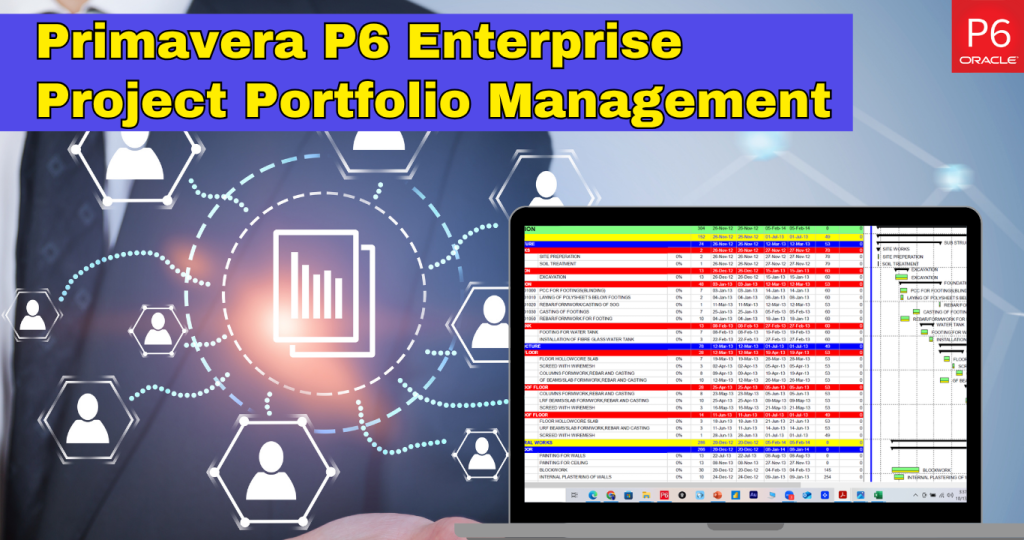
Managing large, complex projects across multiple departments, regions, and stakeholders is a major challenge for enterprises. Primavera P6 Enterprise Project Portfolio Management is designed specifically to handle this level of complexity. It provides advanced planning, scheduling, resource management, and reporting capabilities that help organizations maintain control, visibility, and alignment across their entire project ecosystem.

In this article, we’ll explore how Primavera P6 supports enterprise project management and why it remains a trusted solution for large-scale organizations.

What Is Primavera P6 Enterprise Project Management?

Primavera P6 is a high-performance project portfolio management software used by enterprises to plan, manage, and execute large, multi-project environments. It is widely adopted in various industries, including construction, engineering, oil and gas, manufacturing, IT, and government.

Unlike basic project tools, Primavera P6 is built for enterprises that manage thousands of activities, shared resources, and long-term strategic initiatives—all within a single, centralized platform.

How Primavera P6 Enables Enterprise-Level Project Planning

One of the strongest features of Primavera P6 is its advanced scheduling engine. Primavera P6 scheduling allows enterprises to plan and control highly complex project timelines with accuracy and flexibility. Project teams can:

  • Create detailed work breakdown structures (WBS)
  • Manage logical dependencies and constraints
  • Schedule thousands of activities without performance issues
  • Apply critical path and what-if analysis

Moreover, Primavera P6 stores all project information in a centralized database, making it easier for enterprise teams to collaborate. Stakeholders across departments can access the same data, reducing miscommunication and version control issues.

Want to Learn More About Primavera P6!

Watch our detailed video on Primavera P6 for beginners

How Primavera P6 Supports Portfolio Management?

Here’s how Primavera P6 helps manage resources, costs, and risks across all your projects:

  1. Enterprise-Wide Project Portfolio Visibility

Primavera P6 enables organizations to manage multiple projects and programs simultaneously. Executives and PMOs can view:

  • Project priorities
  • Budget utilization
  • Schedule health
  • Resource allocation across portfolios

With Primavera P6 Enterprise Project Portfolio Management, leadership teams gain a unified view of enterprise initiatives, helping them balance resources and timelines more effectively.

  1. Prioritization and Strategic Alignment

The platform allows enterprises to rank and prioritize projects based on business value, risk exposure, and available resources. This ensures that high-impact initiatives receive proper focus while lower-priority projects are optimized or deferred.

  1. Optimized Resource Allocation Across Projects

Enterprise resource conflicts can quickly derail timelines. By combining resource planning with Primavera P6 scheduling, organizations can align labor, equipment, and materials across multiple projects while minimizing over-allocation and downtime.

  1. Forecasting Resource Demand

Primavera P6 supports long-term resource forecasting, allowing enterprises to anticipate workforce and equipment needs well in advance—an essential capability for large-scale and long-duration projects.

  1. Budget Planning and Cost Tracking

Primavera P6 integrates cost control directly into project schedules, allowing enterprises to track planned versus actual costs in real time. Financial teams gain early visibility into budget risks and cost overruns.

  1. Earned Value Management (EVM)

The platform supports earned value metrics such as Cost Performance Index (CPI) and Schedule Performance Index (SPI), helping enterprises measure true project performance and take corrective action early.

  1. Proactive Risk Identification

Primavera P6 allows teams to identify risks, assess potential impacts, and assign mitigation strategies directly within the project plan. This structured approach reduces uncertainty and improves enterprise project stability.

  1. Customizable Enterprise Reporting

Primavera P6 converts complex project and scheduling data into clear, actionable reports. Executives and PMOs can generate dashboards that highlight performance trends, risks, and schedule variances.

  1. Seamless System Integration

Primavera P6 integrates with ERP, HR, finance, and business intelligence systems, ensuring consistent data flow across enterprise platforms.

Conclusion

Primavera P6 stands out as a robust enterprise project management solution, designed to handle the complexities of multi-project environments. Its advanced scheduling capabilities, centralized data management, and portfolio-level oversight empower organizations to plan, track, and execute projects with precision and efficiency. 

Throughout this blog, we have discussed the key features and benefits of Primavera P6. We also explored how the software enables organizations to prioritize initiatives, forecast resource demand, monitor performance metrics like CPI and SPI, and integrate seamlessly with other enterprise systems.

In short, Primavera P6 Enterprise Project Portfolio Management enables teams to make informed decisions, streamline workflows, and ensure projects are completed on time and within budget.

How to Create a Work Breakdown Structure in Primavera P6

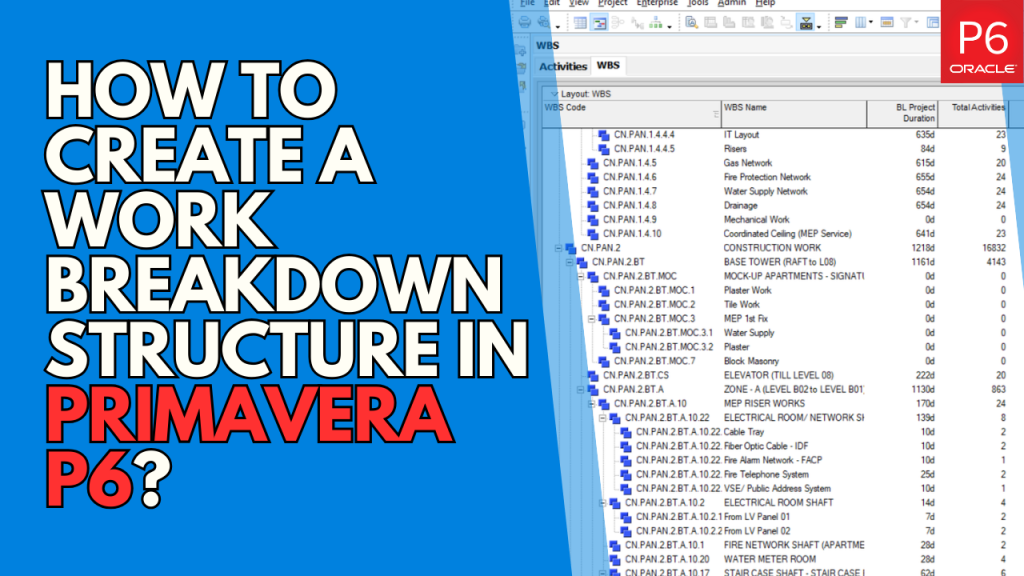
How to Create a Work Breakdown Structure in Primavera P6?

Ever wonder why some projects stay precisely on track while others struggle despite having similar tools, teams, and timelines? The key difference lies in how well the project is structured from the start, particularly through the Work Breakdown Structure (WBS) in Primavera P6. When developed correctly, a WBS does more than organize tasks; it improves the way you plan, manage, and deliver outcomes. 

In this guide, we’ll walk you through creating an effective WBS in Primavera P6 that will help you establish a stronger structure for every project.

Steps to Create a Work Breakdown Structure (WBS) in Primavera P6

Here’s a step-by-step process of building a clear and organized WBS for your next project:

1. Open the WBS Tab

With your project selected, click the WBS icon in the Project Tools group. This action opens the dedicated WBS tab where all structure-building tasks begin.

Source: https://tensix.com/creating-a-work-breakdown-structure-in-primavera-p6/

2. Add the First WBS Element

Go to Edit | + Add to insert your first WBS element. This creates a child element under the Home Construction project. Rename it to Mobilization.

Source: https://tensix.com/creating-a-work-breakdown-structure-in-primavera-p6/

3. Insert Additional WBS Elements

With Mobilization highlighted, select Edit | + Add again to create another element. Rename it Foundation, then use the Move Left tool to shift it into the proper hierarchy as a sibling instead of a child.

Source: https://tensix.com/creating-a-work-breakdown-structure-in-primavera-p6/

4. Create More Sibling WBS Elements

To add an element at the same level, highlight Home, choose Edit | + Add, and name the new item Structure. Reorder it using the move tools to ensure it appears correctly within the Level 2 structure.

Source: https://tensix.com/creating-a-work-breakdown-structure-in-primavera-p6/

5. Complete Level 2 of the WBS

Use the hierarchy adjustment tools to arrange Mobilization, Foundation, and Structure in the required order. This finalizes your Level 2 WBS layout.

6. Add Child Elements Under Structure

Highlight Structure, then select Edit | + Add to begin entering all its child-level components. Continue adding items until the full Structure breakdown is complete.

7. Build Out the Remaining WBS Sections

Repeat the same process for the Interior and any additional major sections. By following a consistent approach, you can fully develop the Home Construction WBS.

8. Correct WBS Codes and Labels

If an item such as Décor appears with an incorrect number, manually edit the final segment of its WBS Code. Primavera will automatically update the entire code chain for accuracy.

9. View the WBS in Chart Format

Click the Chart View icon to switch from the tabular layout to a visual diagram. This allows you to review the overall structure of your completed WBS.

Conclusion

Building a well-structured Work Breakdown Structure (WBS) in Primavera P6 brings clarity, control, and consistency to any project. When your WBS is organized from the start, every phase, planning, scheduling, resource allocation, and execution flows more smoothly and predictably. 

Throughout this guide, we have covered essential steps, including opening the WBS tab, adding and organizing elements, building hierarchy levels, refining codes, and reviewing the structure in chart format. 

By implementing the techniques shared in this guide, you’ll be able to build WBS structures that reduce confusion, improve team coordination, and strengthen overall project control. 

Want to Learn More About Scheduling!

Here’s our simple guide that will help you build construction scheduling with Primavera P6.

How to Create Reports in Primavera P6 Professional?

How to Create Reports in Primavera P6 Professional?

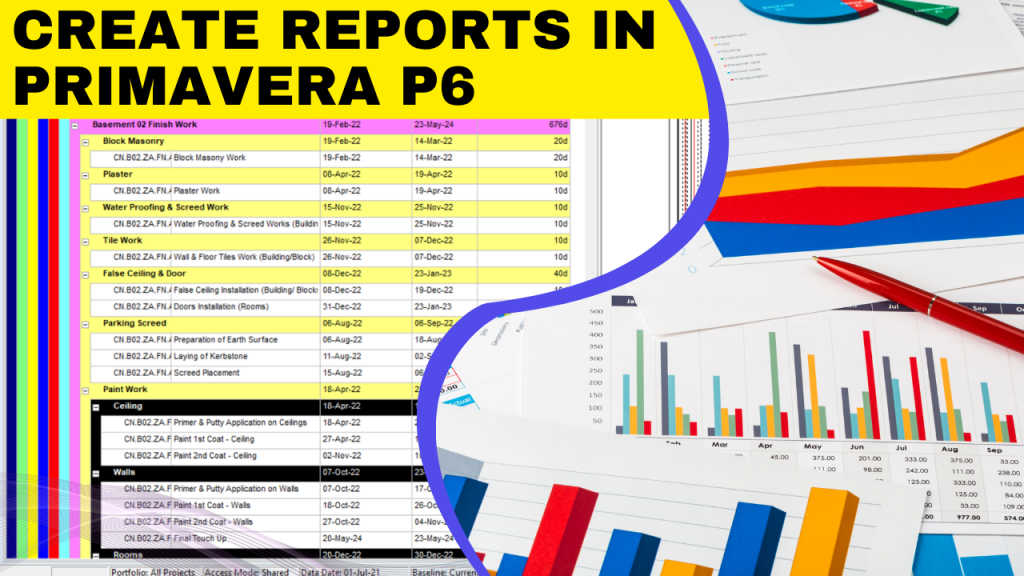
Primavera P6 reporting is an essential feature for users who need to share schedule progress updates with stakeholders. It allows project teams to present clear, organized data that reflects real-time project performance.

While users can easily print a PDF version of the activities table and Gantt chart to show project status, stakeholders sometimes prefer a more detailed, tabulated view of schedule progress. With Primavera P6 professional reporting, you can quickly generate professional, tabulated reports that highlight every key aspect of your project’s timeline and progress.

In this article, we’ll walk you through how to create a tabulated schedule progress report using our Primavera P6 reporting tutorial.

What are the Types of Reports In Primavera P6?

Primavera P6 reporting plays a key role in tracking and analyzing project performance. There are several types of reports, each serving a different purpose. 

  1. Tabular reports present project data, such as activities, costs, and resources, in a clear table format, making it easy to review details. 
  2. Graphical reports utilize charts and histograms to display trends, progress, and workload visually. 
  3. Layout reports, also known as printed layouts, display Gantt charts and activity tables directly from the project view. 
  4. Report Wizard helps users create custom reports quickly without requiring technical skills.
  5. Custom SQL reports allow advanced users to extract complex data and integrate with databases.

Step-by-Step Process of Creating Primavera P6 Reports

Here we’ll guide you through the step-by-step process for creating user-friendly Primavera P6 reports:

  1. To create a tabulated report, select the Reports icon from the Enterprise tool group.
Primavera P6 professional reporting
  1. Once in the Reports window, choose Edit | + Add to launch the Report Wizard.
create a monthly report in Primavera P6
  1. Click Next, and in the Select Subject Area dialog, choose Activities.
Select Subject Area
  1. Next, in the Select Additional Subject Areas window, select Activity Steps.
  1. Since two of our scheduled activities include steps, we’ll configure the report to display their step progress. Move Activity Steps to the Selected Subjects Area frame and click Next to continue to the configuration window.
  1. Highlight Activities, then click Columns to open the familiar Columns dialog. 
  1. You don’t need to modify the Group and Sort options, but to confirm that no grouping criteria exist, click Group and Sort. 
  1. No filter is necessary for this report, so the activities section is now fully configured. Next, let’s configure the Steps. Highlight Steps and click Columns.
  1. In the Columns dialog, select all relevant options to display the steps data.
  1. There’s no need to set up grouping or filters for steps. In Figure 11, we’ve entered a descriptive name for the report.
  1. Click Run Report.
  1. Enable Print Preview and select OK.
  1. Your completed tabulated report will appear, as shown in Figures 14 and 15.
  1. Once you have reviewed the report and confirmed that everything looks correct, click Save to use the Primavera P6 project report PDF.

Conclusion

Mastering Primavera P6 professional reporting is a key skill for effective project management. It streamlines the creation of structured, tabular reports while providing flexible options to share or store critical project data.

In this guide, we explored the types of reports in Primavera P6 and the step-by-step process of generating organized, tabulated reports that can be customizable according to your project’s needs. 

By using these reports efficiently, you can enhance team communication, improve data accuracy, and simplify progress tracking.

Want to Learn More?

Watch our 2-hour free course on Primavera P6 training for oil and gas projects.

How to Create EPC Planning in Primavera P6?

How to Create EPC Planning in Primavera P6?

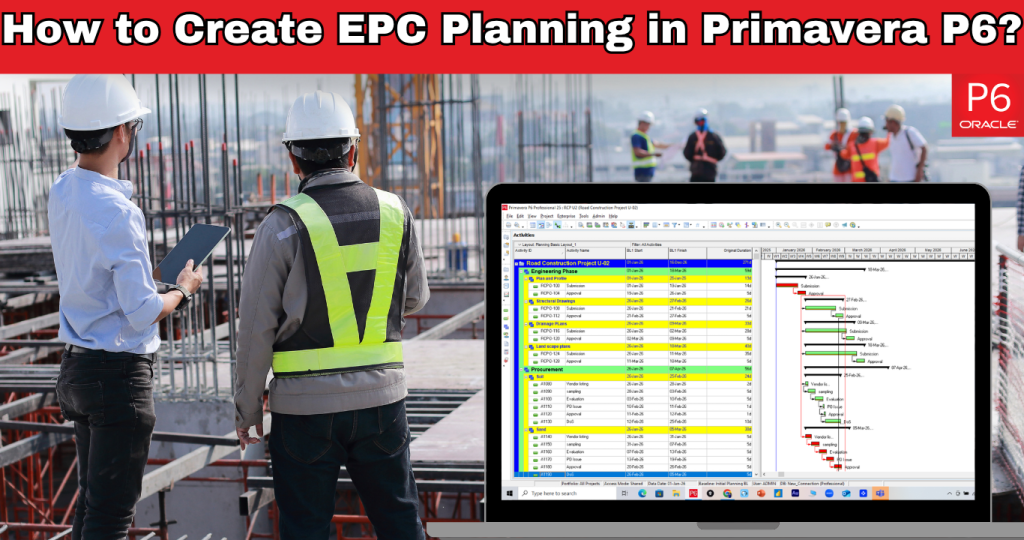
Planning an EPC (Engineering, Procurement, and Construction) project is a complex task that requires strategic coordination, accuracy, and efficient management. This is where Primavera P6 proves invaluable. Primavera P6 enables project managers to streamline workflows, allocate resources effectively, and maintain full visibility across all project phases. 

In this guide, we’ll explore how to create comprehensive EPC planning in Primavera P6 that helps you achieve seamless execution and on-time, within-budget project delivery.

Why Set Up an Enterprise Project Structure (EPS) for EPC Planning?

Before starting EPC planning in Primavera P6, setting up an Enterprise Project Structure (EPS) is essential. The EPS is a hierarchical framework that helps organize and manage multiple projects efficiently within your database. It is a structured folder system where each category represents a group of related projects, allowing smoother navigation and management. 

Moreover, EPS may include categories like Engineering & Construction (E&C), Manufacturing, and Product Development. This organization makes locating and managing projects effectively during your EPC Planning in Primavera P6 process easy.

These EPS layers also appear on the project’s screen as colored bands, enabling you to add new projects directly under the appropriate category.

Source: https://www.taradigm.com/how-to-create-a-project-in-primavera-p6/

Step-by-Step Guide to Create EPC Planning in Primavera P6

Here’s a step-by-step guide to help you create EPC Planning in Primavera P6 efficiently and accurately:

  1. Creating a New Project

Once your EPS is established, you can create new projects, an essential step in any EPC Planning in Primavera P6 workflow.

To create a project:

  • Go to File > New, or
  • Right-click within the Projects table and select Add.
Step-by-Step Guide to Create EPC Planning in Primavera P6

Source: https://www.taradigm.com/how-to-create-a-project-in-primavera-p6/

This opens the New Project Wizard, which will walk you through setting up your project’s key parameters. A new project with a default Project ID is created and displayed in the title bar when the wizard launches.

Source: https://www.taradigm.com/how-to-create-a-project-in-primavera-p6/

  1. Selecting an EPS Layer

The wizard’s first step is to choose which EPS layer your project will belong to.
By default, P6 places new projects under the All Initiatives layer. To change this, click the ellipsis (…) button to open the assignment window and select the relevant layer—for example, Engineering & Construction for a construction project.

Source: https://www.taradigm.com/how-to-create-a-project-in-primavera-p6/

After selecting your layer, click Assign, then Next to continue.

  1. Setting a Project ID and Name

Each project in your database requires a unique Project ID. If a duplicate ID is entered, P6 automatically adds “-1” to make it unique. A good practice is to use your job number, contract number, or accounting reference for consistency. The Project Name doesn’t need to be unique, but should be descriptive enough to identify the project at a glance. 

Source: https://www.taradigm.com/how-to-create-a-project-in-primavera-p6/

Click Next when done.

  1. Choosing Project Dates

Next, specify your Planned Start and Must Finish By dates.

By default, the start date is set to the day you create the project, but it can be modified manually or through the calendar tool. The Planned Start Date often represents the contract award date, not just the beginning of construction, as EPC Planning in Primavera P6 typically includes preconstruction and engineering activities.

For example:

  • Planned Start: January 2nd
  • Must Finish By: September 25th

Source: https://www.taradigm.com/how-to-create-a-project-in-primavera-p6/

The “Must Finish By” field is optional. It won’t restrict the project’s schedule, but it is a useful reference for tracking whether it is on time, early, or delayed. Click Next to proceed.

  1. Selecting a Responsible Manager

Now assign a Responsible Manager from the Organizational Breakdown Structure (OBS).

Source: https://www.taradigm.com/how-to-create-a-project-in-primavera-p6/

This defines who can access, edit, and control the project. Click the ellipsis (…) button, choose the appropriate manager, and press Assign. If unsure, leave the default setting as administrators can modify it later.


Source: https://www.taradigm.com/how-to-create-a-project-in-primavera-p6/

Click Next to continue.

  1. Choosing a Rate Type

Next, assign a Rate Type, which determines the standard cost rates for any resources or roles linked to the project. These rates are predefined by your Primavera P6 database administrator.

Source: https://www.taradigm.com/how-to-create-a-project-in-primavera-p6/

For most EPC Planning in Primavera projects, you can use the default Standard Rate.

Source: https://www.taradigm.com/how-to-create-a-project-in-primavera-p6/

Click Next, then Finish to complete the project setup.

Source: https://www.taradigm.com/how-to-create-a-project-in-primavera-p6/

  1. Adjusting Project Information

Once created, your project appears in the Projects List under its designated EPS layer. Selecting the project lets you view or edit its details in the Project Details section.

You can modify project metadata such as IDs, names, responsible managers, or key dates. Even after project execution begins, Primavera allows you to fine-tune information to ensure your data stays accurate and aligned with the latest project developments.

For professionals aiming to master these configurations, earning a Primavera P6 Certification can significantly enhance your expertise in project management, scheduling, and enterprise-level planning. 

Source: https://www.taradigm.com/how-to-create-a-project-in-primavera-p6/

Conclusion

Setting up an EPS is the foundation of effective EPC Planning in Primavera P6. By carefully defining EPS layers, assigning project IDs, setting key dates, and choosing responsible managers, you create a structured workflow that supports better control and visibility across all projects.

Primavera P6 Enterprise Project Portfolio Management for Effective Scheduling

How to Use Primavera P6 Enterprise Project Portfolio Management for Effective Scheduling?

In today’s highly competitive construction, engineering, and IT industries, effective project planning and scheduling can make or break success. Primavera P6 Enterprise Project Portfolio Management (EPPM) is one of the most powerful tools for managing complex projects, ensuring timelines are met, and resources are efficiently allocated.

In this guide, we’ll discuss how to use Primavera P6 EPPM for effective scheduling from setup to advanced scheduling best practices.

What Is Primavera P6 EPPM?

Primavera P6 enterprise project portfolio management by Oracle is a comprehensive project planning and management software for handling large-scale, multifaceted projects. It helps project managers:

  • Plan, schedule, and control project activities.
  • Manage resources and costs efficiently.
  • Track progress and forecast completion.
  • Ensure alignment with organizational goals.

Unlike traditional scheduling tools, Primavera P6 project planning is ideal for teams that handle multiple projects, large workforces, and tight deadlines.

Step-by-Step Guide On Using Primavera P6 Enterprise Project Portfolio Management 

Let’s discuss how to effectively use Primavera P6 enterprise project portfolio management for precise scheduling, efficient resource allocation, and strategic project planning:

Step 1: Setting Up Your Project in Primavera P6

Before discussing project planning in P6, you must configure your project correctly.

  1. Create a new project – Open Primavera P6 and create a new project under your EPS (Enterprise Project Structure).
  2. Define project details – Enter essential information like project ID, name, start date, and responsible manager.
  3. Set calendars – Define workdays, holidays, and shift timings using project or global calendars.
Step-by-Step Guide On Using Primavera P6 Enterprise Project Portfolio Management

A well-configured setup ensures accurate scheduling and avoids resource conflicts later.

Step 2: Build the Work Breakdown Structure (WBS)

A Work Breakdown Structure (WBS) is the foundation of your Primavera P6 project planning process. It breaks your project into manageable sections.

  • Go to the WBS tab and start defining major deliverables.
  • Create sub-levels for detailed tasks.
  • Assign codes to keep your structure organized.

This step helps visualize the project’s scope and hierarchy before adding specific activities.

Using Primavera P6 Enterprise Project Portfolio Management

Step 3: Define and Link Activities

Now add your tasks or “activities” into the WBS.

  • Open the Activities tab and insert tasks under each WBS element.
  • Define key details like duration, type (Task Dependent or Resource Dependent), and constraints.
  • Use the Relationships tab to link activities using logic ties (Finish-to-Start, Start-to-Start, etc.).

Creating logical relationships ensures that Primavera P6 can calculate accurate start and finish dates based on dependencies, which is a crucial part of effective project planning.

Step 4: Assign Resources and Costs

Once activities are in place, assign labor, equipment, and materials to each task.

  • Go to the Resources tab and allocate roles or named resources.
  • Use resource calendars to define their availability.
  • Track costs and budgets for better financial control.

This step enhances project planning in P6, helping in resource leveling, preventing over allocation, and ensuring project feasibility.

Step 5: Schedule the Project

After entering activities and dependencies, it’s time to calculate the schedule.

  • Click F9 (Schedule) or go to Tools → Schedule.
  • Primavera P6 will compute start/finish dates and the Critical Path Method (CPM).
  • Review the Gantt Chart to visualize your timeline.

Check for any negative float (delays) or unrealistic durations, indicating scheduling issues that need adjustment. 

Step 6: Baseline and Track Progress

Once the initial plan is finalized, save a baseline to measure future performance.

  • Go to Project → Maintain Baselines → Add New Baseline.
  • Assign the baseline and start tracking actual progress.
  • Update activity status regularly (Not Started, In Progress, Completed).

By comparing actual vs. planned progress, you can easily identify delays, performance gaps, and risks early, keeping your project planning data-driven and transparent.

Step 7: Analyze Reports and Dashboards

Primavera P6 EPPM provides built-in dashboards and analytical reports to keep stakeholders informed.

  • Use activity and resource reports to monitor workload and performance.
  • Leverage earned value analysis (EVA) for cost and schedule efficiency.
  • Share interactive dashboards with executives or clients for transparency.

How to Implement Primavera P6 EPPM Scheduling Practices Effectively?

To make the most out of Primavera P6 EPPM, follow these expert tips for better project planning in P6:

  • Keep your WBS clear and consistent.
  • Avoid open-ended or dangling activities.
  • Regularly update actual progress and resource data.
  • Review the critical path after every schedule update.
  • Use calendars strategically to reflect real working conditions.

Conclusion

Primavera P6 Enterprise Project Portfolio Management requires technical knowledge and strategic thinking. When set up correctly, it can help your team streamline project planning, reduce risks, and deliver projects on time. Whether you’re managing a single construction project or an enterprise-wide portfolio, Primavera P6 project planning ensures your schedule stays accurate, agile, and efficient.

How Can Primavera P6 Certification Boost Your Job Opportunities?

How Can Primavera P6 Certification Boost Your Job Opportunities?

Highlights

  1. Primavera P6 certification proves your ability to manage complex projects with precision in planning, scheduling, and budgeting.
  2. Certified professionals enjoy greater career opportunities, higher salaries, and stronger industry recognition.
  3. Hands-on Primavera training builds real-world project management expertise using tools like WBS, CPM, and float analysis.
  4. Effective practices like baseline planning, accurate data, and smart resource allocation ensure project success.

In today’s job market, having the right project management skills can make a big difference in your career. A Primavera P6 certification helps you stand out by showing that you can plan, schedule, and manage projects efficiently using one of the most trusted tools in the industry. 

It’s recognized across fields like construction, IT, engineering, and oil & gas, making it valuable for professionals at any level. In this guide, we’ll explore how Primavera P6 certification can boost your job opportunities and set you up for long-term success.

What is Primavera P6 Certification?

Primavera P6 certification is a professional credential that proves your ability to use Primavera P6 project management software effectively. This certification shows you understand how to plan, schedule, manage, and track complex projects using the software’s advanced tools. Moreover, it validates your resource allocation, budgeting, progress tracking, and risk management knowledge. 

What are the Career Benefits of Primavera P6 Training and Certification?

Getting Primavera P6 software training and certification can be a game-changer for your professional growth. Here’s how it can shape your career:

  1. Gain a Competitive Edge in the Job Market

In today’s highly competitive job market, having a Primavera P6 certification immediately sets you apart from other candidates. Employers value certified professionals who can manage complex projects efficiently using trusted tools. 

  1. Boost Your Earning Potential

Primavera P6-certified professionals often enjoy higher salaries than their non-certified peers. Companies are willing to invest in experts who can reduce risks, optimize schedules, and ensure timely project completion. 

  1. Enhance Your Project Management Skills

Through structured Primavera P6 training, you’ll develop the ability to manage every project stage, such as:

  • Planning
  • Scheduling
  • Monitoring 
  • Reporting

A notable example of this can be seen in a case study of Libyan construction projects, where almost 79.5% of contractors and 87.3% of consultants who adopted Primavera technology reported they met their project objectives. Additionally, 91.2% of contractors and 84.2% of consultants said the software helped them resolve raw-material availability or transport cost issues.

  1. Build Professional Credibility and Recognition

Taking Primavera P6 classes from Skill Age adds global credibility to your professional profile. It demonstrates your commitment to maintaining high industry standards and your ability to successfully lead projects.

  1. Get Real Hands-On Experience

Practical learning is a key part of project management. In a Primavera training course, you’ll use the software directly and practice through real-world exercises. These lessons are based on actual project situations, helping you understand how to apply what you learn in real job settings.

How to Learn Primavera P6 Software Quickly?

Primavera P6 installation isn’t a complicated process. With a focused learning plan and the right tools, you can quickly build the skills to manage, analyze, and optimize project schedules like a pro. Here’s how you can start using Primavera P6 with confidence:

1. Understand the Primavera P6 Folder Structure (EPS)

Take time to learn how the Enterprise Project Structure (EPS) works.
Set up clear folders and subfolders for your projects, just like organizing files on your computer. This structure makes importing schedule files easier and ensures you can manage multiple projects efficiently.

Understand the Primavera P6 Folder Structure

Source: https://www.cpm-ss.com/how-to-learn-primavera-p6-quickly

Tip: Importing schedules sometimes triggers compatibility errors, especially when working with newer versions of Primavera P6.

2. Learn the Interface

The Primavera P6 interface can look complex at first glance. Start by exploring the Activity Table, Gantt Chart, and relationship views (predecessors and successors).
You can adjust what appears on top or bottom by going to View → Show on Top/Bottom.

Primavera P6 interface

Source: https://www.cpm-ss.com/how-to-learn-primavera-p6-quickly

Also, experiment with visibility settings and customize the interface to streamline your workflow. Understand the Work Breakdown Structure (WBS), which divides your project into manageable sections for easier tracking and reporting.

Source: https://www.cpm-ss.com/how-to-learn-primavera-p6-quickly

3. Use Filters and Layouts for Smarter Navigation

Filters and layouts are key to working efficiently in Primavera P6.

  • Layouts let you save and recall interface settings (columns, filters, and views), perfect for switching between different project perspectives.
  • Filters help display only the activities you must focus on, making schedule reviews cleaner and faster.

4. Learn to Identify the Critical Path and Float Paths

The Critical Path Method (CPM) is one of Primavera P6’s most valuable tools. It helps you pinpoint the tasks that directly affect your project’s finish date.
Similarly, float paths highlight areas where delays won’t immediately impact the schedule, essential for smart risk management and prioritization.

Source: https://www.cpm-ss.com/how-to-learn-primavera-p6-quickly

Practicing these calculations will give you a clearer view of project dependencies and help you anticipate potential bottlenecks before they happen.

Tip: Learn how to master project management software with our Primavera Training – register now!

Best Practices for Using Primavera P6 Software

To get the most out of Primavera P6, following certain best practices that ensure smoother workflows and more reliable project outcomes is important. Below are some key recommendations to help you use the software effectively:

1. Project Setup

Start by creating a clear and well-structured Work Breakdown Structure (WBS). This helps define your project’s scope and ensures consistency throughout the planning phase. A well-designed WBS serves as the foundation for efficient scheduling and tracking.

2. Data Integrity

Update and verify your project data regularly. Keeping your information accurate and up to date prevents scheduling errors and enhances decision-making. Reliable data ultimately leads to better project control and performance.

3. Resource Management

Another important practice is to assign resources wisely. Balance workloads to avoid over-allocation and burnout. Proper resource management ensures that team members are utilized effectively while maintaining productivity and efficiency.

4. Baseline Planning

Always set a baseline before starting project execution. This baseline serves as a benchmark for comparing actual progress against planned schedules. With a defined baseline, you can easily identify deviations and take corrective action when needed.

Tip: Master advanced concepts like plant shutdown management and EPC planning in our Primavera P6 Course – Register now!

Final Words

Primavera P6 certification is more than just a credential. It’s a career builder that equips you with the technical skills, confidence, and credibility to manage complex projects successfully. Also, by using our step-by-step guide, you can master Primavera P6 and position yourself as a trusted professional capable of managing complex projects efficiently.