Primavera P6 Professional includes several powerful features to help project managers stay in control of complex schedules, and the Spotlight Tool is one of the most effective among them. When managing hundreds or even thousands of activities, quickly identifying specific tasks, relationships, or schedule issues becomes critical. The Spotlight Tool allows you to visually highlight selected activities and their connections, making it easier to analyze workflows, detect risks, and focus on what truly matters.
In this guide, we’ll walk you through using the P6 Professional Spotlight Tool to highlight tasks efficiently and improve schedule clarity, accuracy, and decision-making.
What Is Spotlight in Primavera P6?
Spotlight in Primavera P6 is a useful feature that allows schedulers and project managers to quickly highlight activities within a selected time period. It visually displays only the relevant activities in both the Activity Table and the Gantt Chart, eliminating the need to manually create or apply filters.
This feature is especially valuable in complex environments such as plant shutdowns and turnarounds, where precise tracking of time-bound activities is critical. To overcome this, we offer a Plant Management Shutdown Course designed for planners, schedulers, and project professionals working in shutdown and turnaround environments. The course covers shutdown scheduling in Primavera P6, work area and system-based planning, activity linking, and much more!
How to Enable the Primavera P6 Progress Spotlight Function?
You can enable this feature by following these steps:
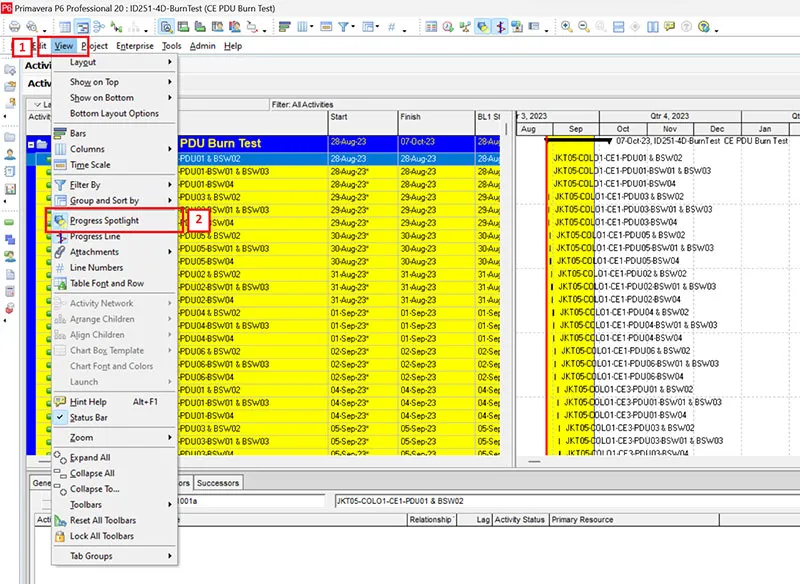
- Go to View and select Progress Spotlight from the drop-down menu.
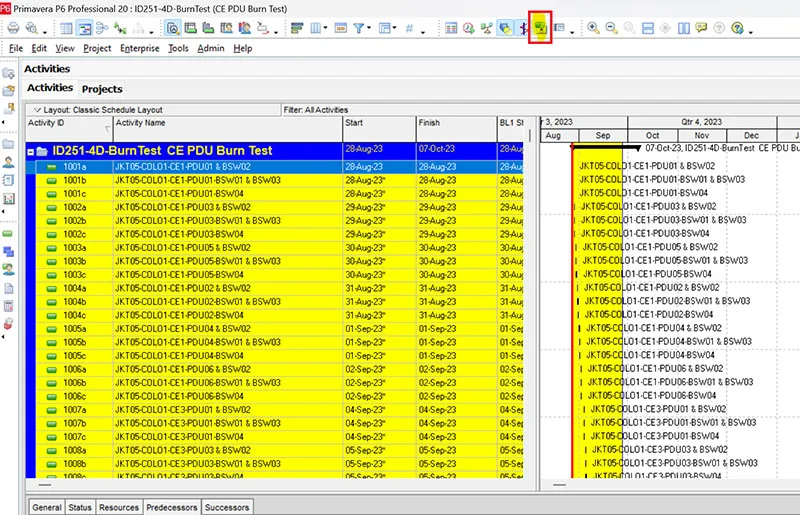
- Click the Spotlight icon on the Tools toolbar, which is visible by default at the top of the P6 window.
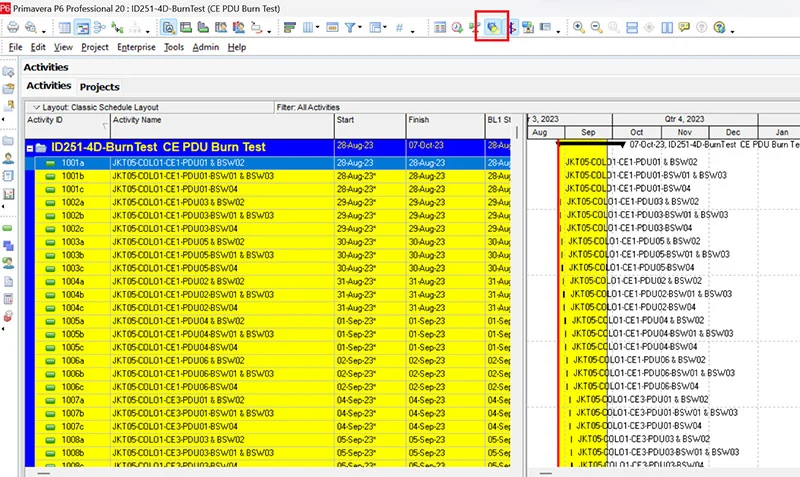
Note that Progress Spotlight can only be activated when the Activities window is active. Currently, there is no keyboard shortcut available for this feature, so it must be accessed through the menu or toolbar.
Using the P6 Professional Spotlight Tool to Highlight Tasks
Once Progress Spotlight is enabled, Primavera P6 highlights in yellow all activities that fall between the current data date and the new projected data date on the Gantt Chart. This includes activities that started, progressed, or were completed during that time range.
By default, P6 automatically sets the new projected data date based on the timescale displayed in the Gantt Chart. For example:
- If the timescale is set to Weekly, the new data date will move to the following week.
- If set to Daily, Monthly, or Quarterly, the projected data date will adjust accordingly.
To ensure accurate reporting, users should set the timescale to match how they want the new projected data date to be calculated.
Manually Adjusting the Spotlight Range
In Primavera P6 Professional, users can also manually modify the projected data date. This can be done by clicking the right edge of the spotlight bar and dragging it left or right to the desired date. As the range changes, P6 automatically updates the highlighted activities between the original data date and the newly selected date.
If multiple projects are open, P6 will use the default project’s data date as the starting point for the spotlighted period. Understanding this behavior is essential in multi-project environments, and it is a key focus area within our Primavera P6 services.
Updating Progress Using the Spotlight Function
After highlighting the relevant activities, users can update progress either manually or automatically:
- Manual update: Enter progress details directly for each highlighted activity, such as activity status, actual start/finish dates, Physical % Complete, units, costs, or expenses.
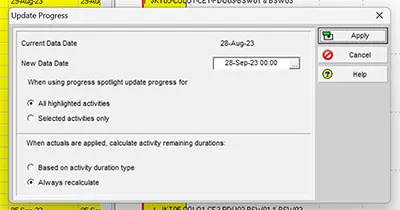
- Automatic update: Click the Update Progress icon, located on the right side of the progress line icon, to use Primavera’s built-in update function.
Rescheduling the Project
Once progress updates are complete, you can immediately reschedule the project to reflect the new data date by clicking the Schedule icon or simply pressing F9. This ensures the schedule is recalculated using the most recent progress information.
Conclusion
Primavera P6 Professional Rel 19 remains a comprehensive solution for managing complex projects with precision and control. Its advanced scheduling, resource optimization, cost tracking, and reporting features make it a vital tool for modern project management.
In this blog, we explored what Spotlight is in Primavera P6 and how it helps project managers and schedulers. We discussed how to enable the Progress Spotlight function and how Spotlight supports both manual and automatic progress updates.
Whether you are a beginner or an experienced planner, investing in Primavera P6 training helps you fully leverage these features and apply them effectively in real-world project scenarios.